

Fix Common Problems with a Clean Reinstall
There are some circumstances in which you need to completely uninstall Any Video Converter (with the components and software settings deleted) to recover the usage. Here is how to uninstall Any Video Converter completely.
Part 1: Uninstall Any Video Converter Completely on Windows
Step 1 Open the Location of the Program on Windows
Press 'Windows + S' and type 'Any Video Converter'. When the program appears, right-click on it.
Select 'Open file location'. From the installation location, find 'Uninstall Any Video Converter.exe' and click to open it.
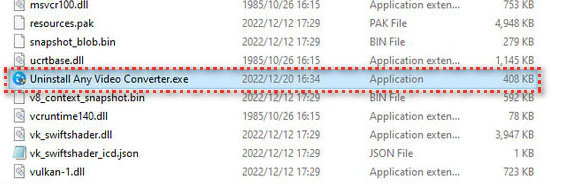
Step 2 Start uninstalling
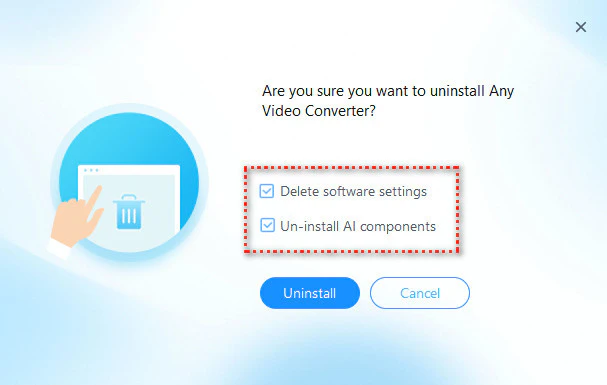
From the uninstall interface, remember to tick both selections: 'Delete software settings' and 'Uninstall AI components', then click the 'Uninstall' button to start uninstalling Any Video Converter.
Need a fresh start? Click the button below to download the most up-to-date version and reinstall Any Video Converter.

Part 2: Uninstall Any Video Converter Completely on Mac
Go to the Finder, such as by clicking your desktop or clicking the Finder icon in the Dock, then find "Any Video Converter" in your Applications folder and drag it to the Bin.
From the uninstall interface, remember to tick both selections: 'Delete software settings' and 'Uninstall AI components', then click the 'Uninstall' button to start uninstalling Any Video Converter.
To reinstall Any Video Converter, please download the latest version using the button below.
