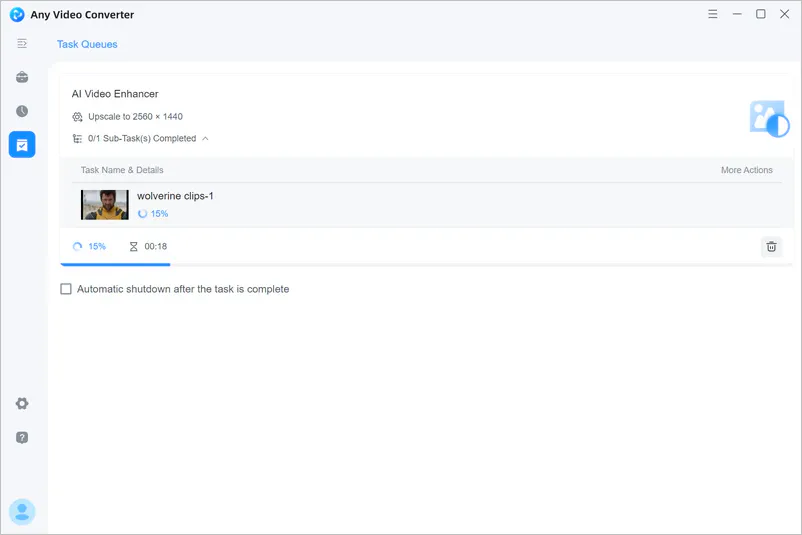
Enhance Video Quality with Dedicated AI Models
Any Video Converter AI video enhancer is more than just a simple video filter; it can perform pixel-level reconstruction of various blurry videos, up to 4K resolution. It can recognize and restore facial details, repair blurred features, eliminate graininess, and smooth edges. By choosing the appropriate AI model, you can create stunning enhancements tailored to your video and its intended use. Here are the detailed steps.


Video Tutorial: Upscale Movie Trailers to 4K
How to Upscale Video Quality with AI Models
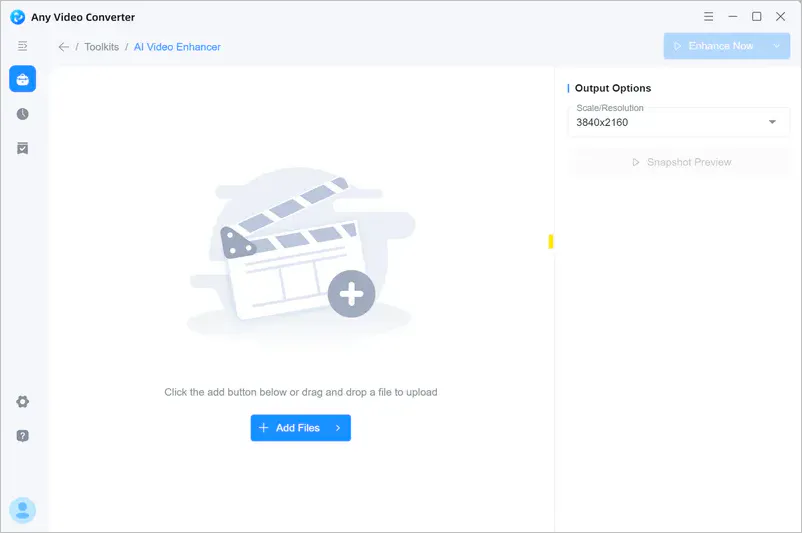
Step 1 Enter the "AI Video Enhancer" Tool
Click the blue "+ Add Files" button in the center of the interface, or drag and drop the video file you want to enhance.
Step 2 Choose the Appropriate AI Model
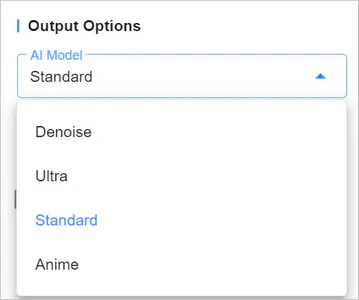
In the "Output Options" panel on the right, click the "AI Model" drop-down menu. Select the most suitable model based on your video type.
Standard: Suitable for most regular videos, balancing processing speed and enhancement effects.
Denoise: If your video was shot in low light and has noticeable noise, please select this model.
Ultra: Used when pursuing ultimate clarity, suitable for further upscaling of high-quality source video footage.
Anime: It is specifically designed for repairing 2D animation and anime series, making character lines smoother.
Step 3 Set Video Resolution
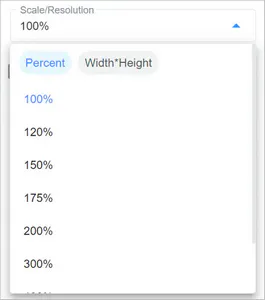
In the "Scale/Resolution" drop-down menu, you can select from 100% to 400% or even up to 4K to losslessly upscale the low-resolution video.
Step 4 Enable Face Enhancement (Optional)
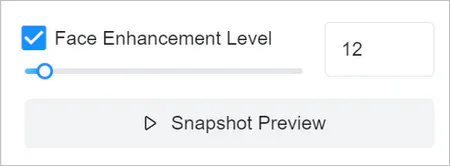
If there are close-up shots of faces in the video, you can enable the "Face Enhancement" checkbox.
Once enabled, a "Face Enhancement Level" slider will appear. You can drag the slider to control the intensity of facial detail restoration. The higher the value, the clearer the facial features.
Step 5 Preview Enhancement Effect
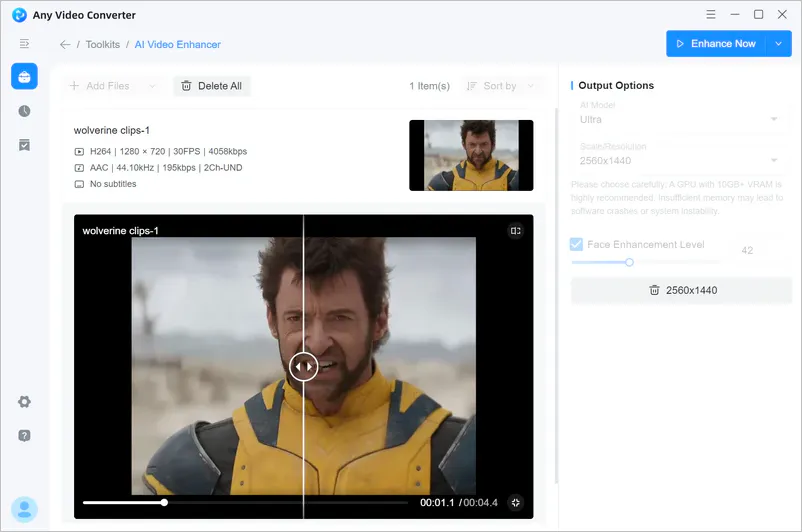
Before you begin the enhancement, click the "Snapshot Preview" button to compare the before and after effects, allowing you to readjust the AI model or face enhancement level.
Step 6 Start Enhancing Video Quality
After confirming that all settings are correct, click the blue "Enhance Now" button in the upper right corner of the interface. The program will begin processing the video. Processing time depends on the video length, the selected model, and your computer's hardware configuration.