

Audio Converter for Windows & Mac
Convert video and audio files to MP3, WAV, FLAC, AAC, and more
- Convert audio and video files to MP3, WAV, FLAC, AAC, and more
- Extract audio from local videos and supported media sources
- Trim, cut, merge, and adjust audio before export
- Customize bitrate, sample rate, channels, and output quality
- Batch convert audio files more efficiently
- Auto Match (Passthrough) preserves original audio quality when possible
 AUDIO CONVERTERAUDIO EDITINGBATCH CONVERTLOCAL PROCESSING

 Switch to Mac Version
 Switch to Windows Version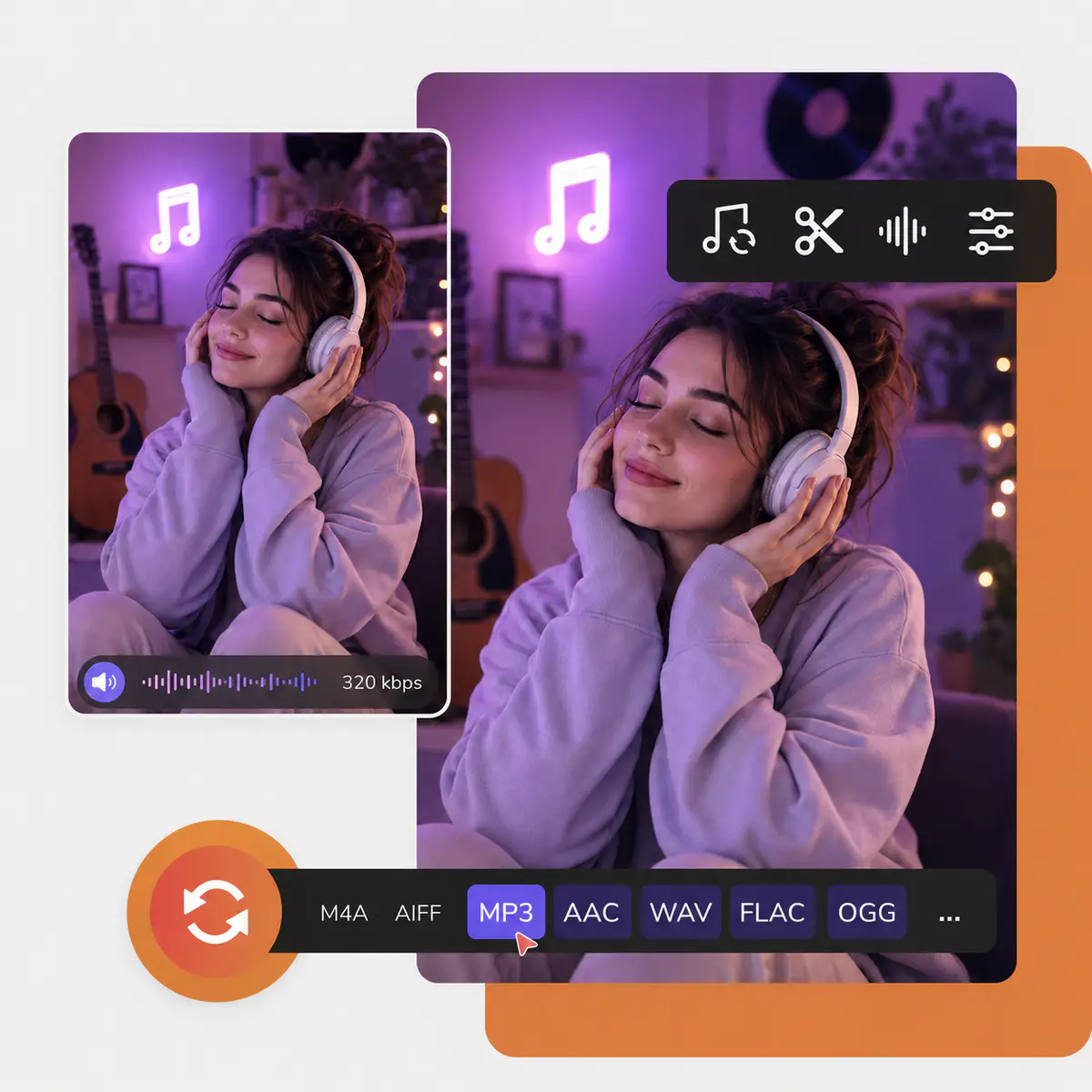
- Features
- User Guide
- FAQ
- Tech Spec
 Any Audio Converter
-


More Than an Audio Converter: Complete Your Audio Workflow
Convert, trim, merge, extract, and prepare audio files in one place — from raw media to ready-to-use audio
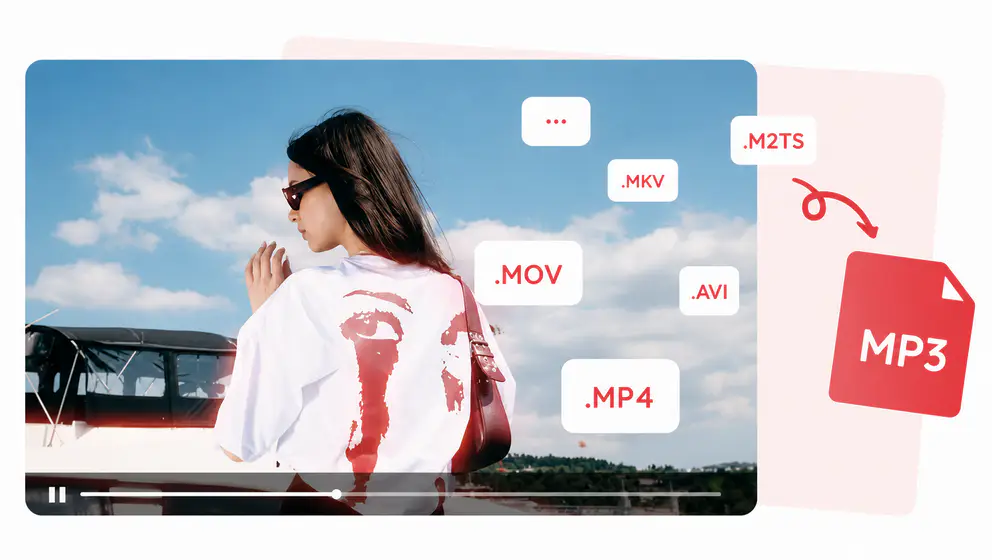
Convert Video and Audio to MP3
Convert MP4, MKV, MOV, AVI, WebM, FLAC, WAV, AAC, and more to MP3, WAV, FLAC, AAC, and other common audio formats for playback, editing, storage, or sharing.
Trim, Split, and Merge Audio Files
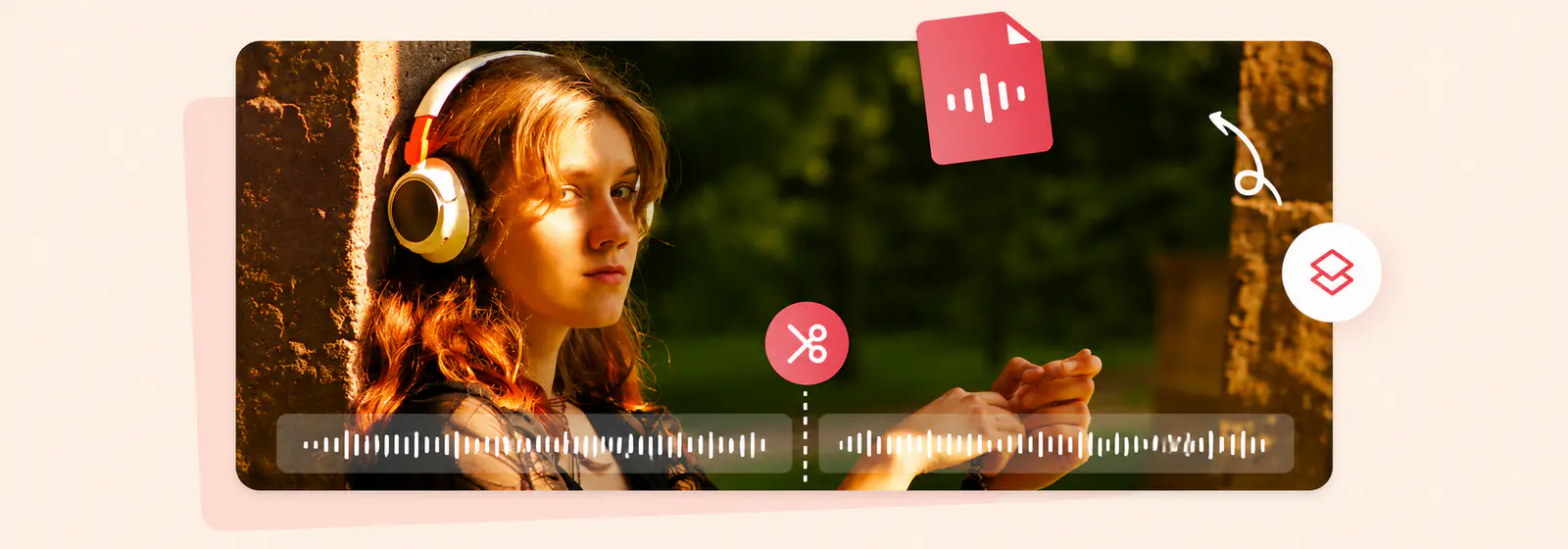
Before converting video or audio files, you can use the built-in trim tools to remove unwanted sections or split files into multiple clips. The merge tool also lets you combine multiple video segments or audio clips into a single file, which can then be converted to MP3, M4A, WAV, and other formats.
Customize Audio Quality and Output Settings
Customize audio output with flexible bitrate, sample rate, channels, and quality controls. Reduce file size, preserve high-quality music, or improve compatibility across different devices and apps. Auto Match (Passthrough) intelligently keeps the original audio stream when compatible, avoiding unnecessary re-encoding while preserving the source quality.
Prepare Audio for More Advanced Workflows
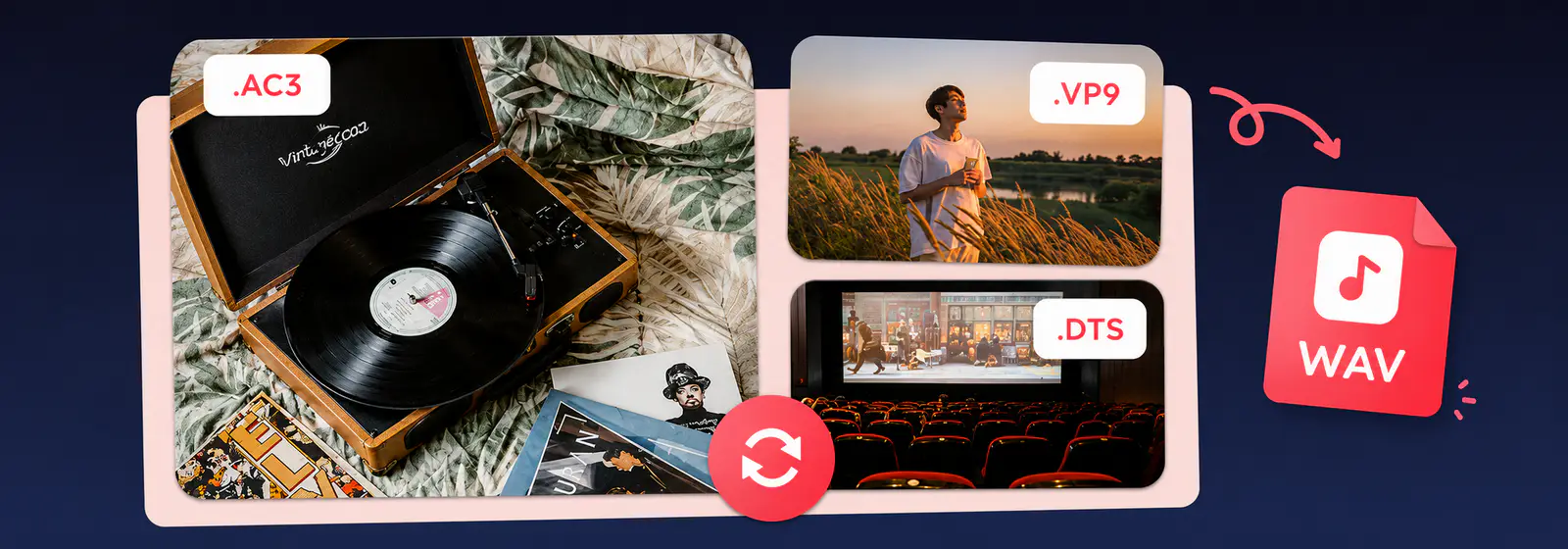
Extract audio from video, prepare voice recordings, podcasts, lectures, music clips, and other media files for editing, transcription, remixing, or reuse.
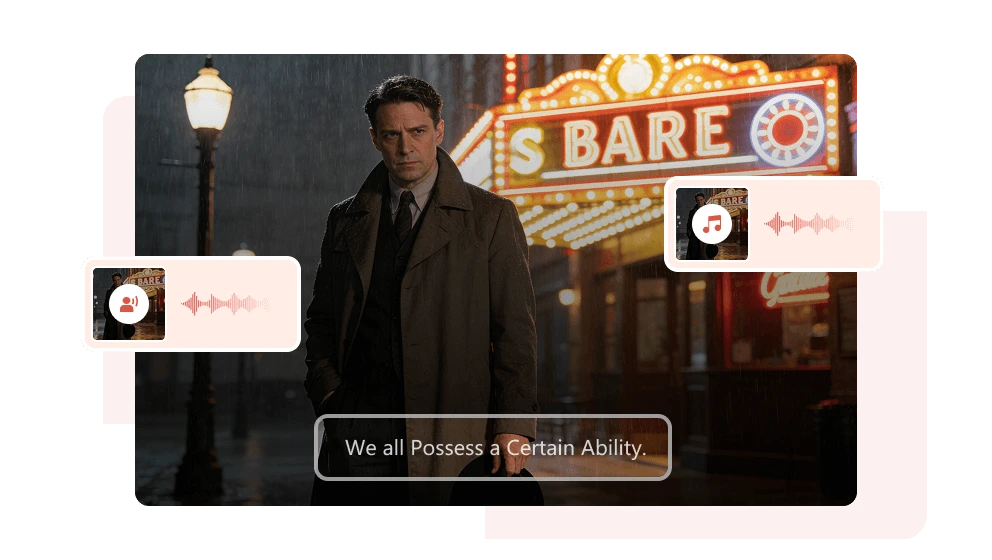
Convert, Edit, and Refine Audio in One Workflow
Start with audio conversion, then trim, merge, adjust, extract, or refine audio files with built-in audio tools
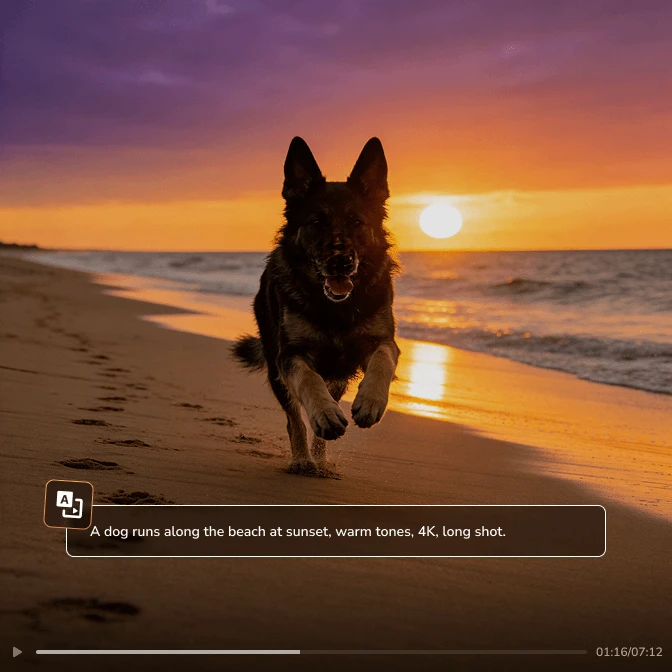
Convert Video to Audio
Extract audio from videos and save it as MP3, WAV, FLAC, AAC, M4A, OGG, or other audio formats.
- Video to Audio
- Video to MP3

Trim and Split Audio
Remove unwanted parts, split long recordings, or keep only the section you need before exporting.
- Trim Audio
- Split Audio
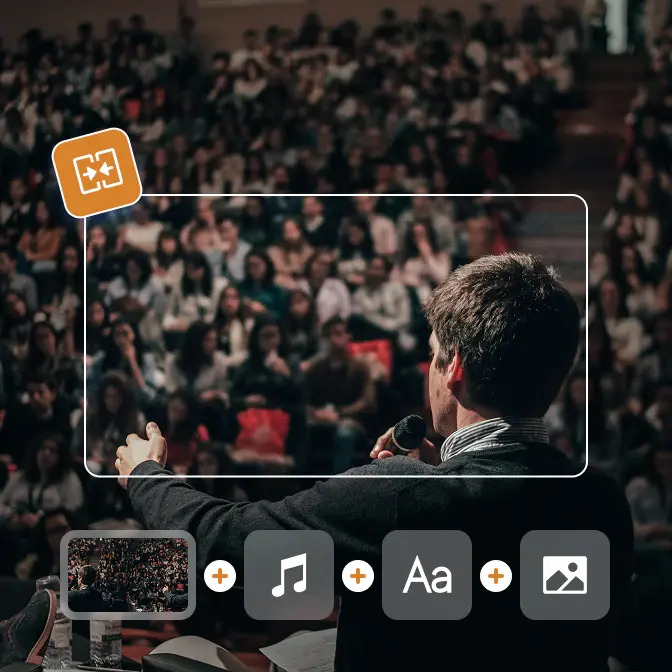
Merge Audio Files
Combine multiple audio files into one continuous track and export them in the order you choose.
- Merge Audio
- One Track
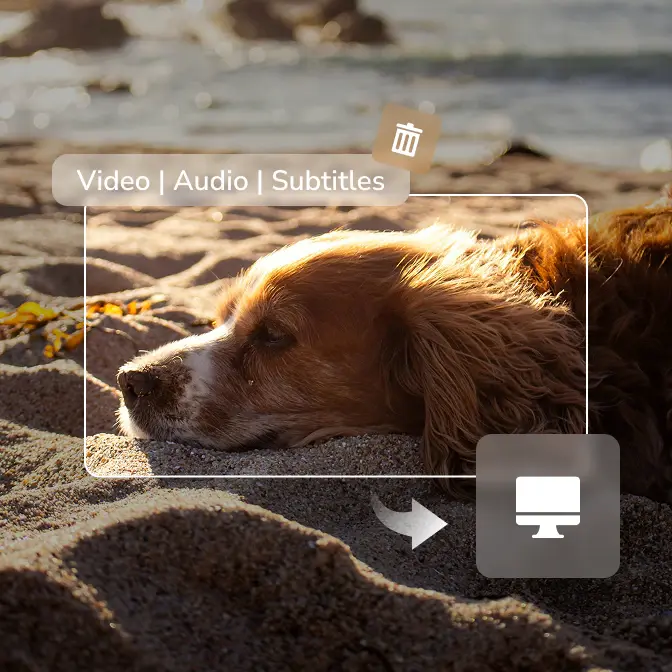
Audio Editing
More built-in audio tools, such as speed changer, audio filter, adding background music, audio track extractor, and more.
- Audio Editing
- Audio Tools
Built for Audio Work: Why Choose Any Audio Converter?
A dedicated audio converter and audio editing tool for everyday conversion, batch processing, and local media workflows
Easy Audio Conversion
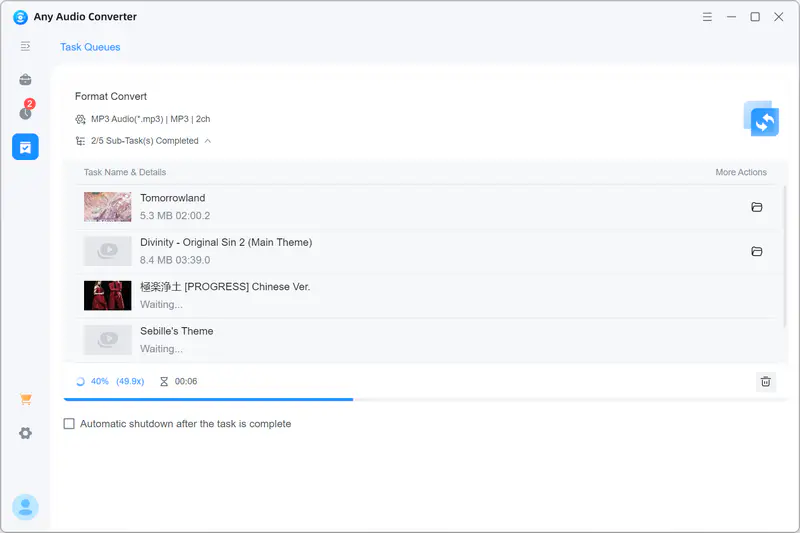
Convert video or audio files to MP3, WAV, FLAC, AAC, and more in a straightforward workflow.
Broad Format Support
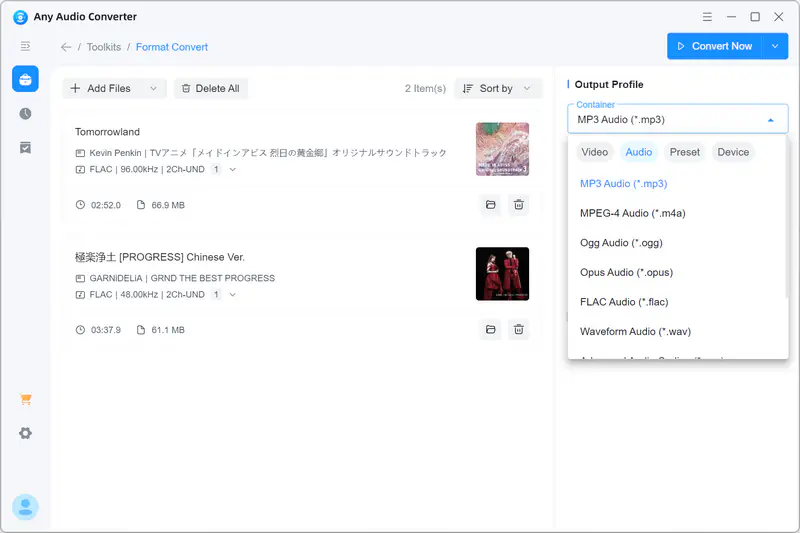
Work with common video and audio formats including MP4, MOV, MKV, AVI, WebM, MP3, WAV, FLAC, AAC, M4A, and OGG.

Built-in Audio Editing
Trim, cut, merge, adjust audio, and more audio editing tasks without switching between multiple tools.
Batch Audio Processing
Add multiple audio files or folders and convert them together with customized presets.
High Quality and Output Control
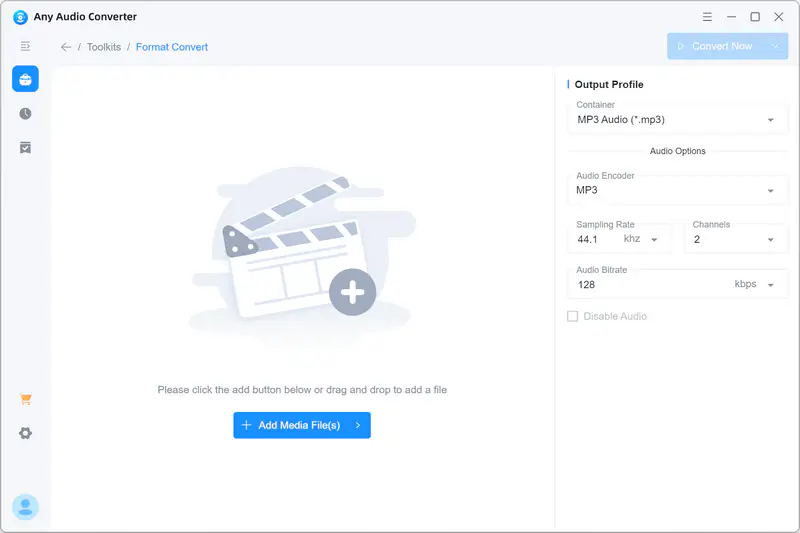
Adjust bitrate, sample rate, channels, and quality settings for different listening or editing needs.
Safe Local Processing
Process audio files locally on your Windows or Mac computer without uploading them to an online converter.
Easy Audio Conversion: Convert Video or Audio to MP3
Convert video and audio files to MP3, WAV, FLAC, AAC, and more
Real Users. Real Audio Conversion Results
See why users trust Any Audio Converter for audio conversion, format compatibility, and everyday media workflows
It's the best multi-utility software available in the market right now. It boasts impressive features and powerful inbuilt tools, all in one place. Whether you need an audio converter or a trimmer, there's no need to download additional software for these tasks; you just switch tabs. It's a really handy software for all your basic needs.

The customer service team is fabulous and quick. The product works great for any video/audio formatting and conversions that I do. Great product!
Value for money! One-time payment. Loads of features. What more do you need? It can convert videos to ringtones or mp3 and let's you edit them whichever way you like. Simply the best video conversion software around.
I also convert some Video Clips into audio files using the app, which makes the process very comfortable without having the need to connect to the internet again or waste my internet package allowance.
I use it in my music classroom to bring an online experience to a building with tenuous internet access. It's easy to use and I can convert to video or audio. I like having that choice depending on what we are doing in class.
I recently had the pleasure of using a music converter program, and I must say, it has completely transformed my music experience. This software offers an intuitive interface that makes it incredibly user-friendly, even for those who may not be tech-savvy. With just a few clicks, I was able to convert my favorite tracks into various formats, including MP3, WAV, and FLAC, ensuring compatibility with all of my devices.
Ready to Convert and Edit Your Audio Files?
Convert and edit your audio files seamlessly with an all-in-one toolkit

Any Audio Converter FAQs
Find quick answers about audio conversion, supported formats, and audio editing
What is Any Audio Converter?
Any Audio Converter is a desktop audio converter and audio editing tool for Windows and Mac. It converts video and audio files to formats such as MP3, WAV, FLAC, AAC, M4A, OGG, and more, and includes tools for trimming, merging, and adjusting audio output settings.
Can Any Audio Converter convert video to audio?
Yes. You can import videos such as MP4, MOV, MKV, AVI, WebM, and more (inclduing DVDs and CDs), then export the audio as MP3, WAV, FLAC, AAC, M4A, or other audio formats.
Which audio formats does Any Audio Converter support?
Any Audio Converter supports common audio formats including MP3, AAC, WAV, FLAC, OGG, WMA, M4A, AC3, DTS, OPUS, and more. You can convert audio files for easier playback, editing, storage, or sharing.
Can I convert FLAC or WAV to MP3?
Yes. Any Audio Converter can convert FLAC, WAV, and other high-quality audio files to MP3 when you need smaller files or wider compatibility with phones, car players, portable speakers, and older media apps.
Can I edit audio before exporting?
Yes. You can trim long audio files, cut unwanted parts, merge multiple audio files into one track, and adjust output settings such as bitrate, sample rate, channels, and quality before exporting.
Can I batch convert audio files?
Yes. Any Audio Converter supports batch conversion, so you can add multiple audio or video files, choose the output format and settings once (or with presets), and process them in batch more efficiently.
Does Any Audio Converter process files locally?
Yes. Audio conversion and basic editing are handled locally on your Windows or Mac computer, which is useful for large files, repeated conversions, and privacy-sensitive media.
What is the difference between Any Audio Converter and Any Audio Converter One?
Any Audio Converter focuses on professional audio conversion and audio editing. Any Audio Converter One includes the audio tools in Any Audio Converter and adds video editing tools plus more advanced AI-powered media tools (Speech to Text, AI Audio Splitter, and more).
Should I use an online audio converter or a desktop audio converter?
An online audio converter is convenient for small files, but it may have upload limits, speed issues, or privacy concerns. A desktop audio converter like Any Audio Converter is better for large files, batch conversion, local processing, and media you do not want to upload.
Explore Popular Audio Converter Tools
Quickly convert video and audio files to MP3, and other popular audio formats


