Working with Audio Tracks and Subtitles
Using the Format Convert tool, you can remove unwanted audio tracks and subtitles to restore a clean video feed. Alternatively, you can freely add or retain multiple subtitle and audio tracks to switch between different language dubs and subtitles during playback. The specific steps are outlined below.


Audio Tracks and Subtitles Management
Step 1 Upload Your Video Files in Format Convert
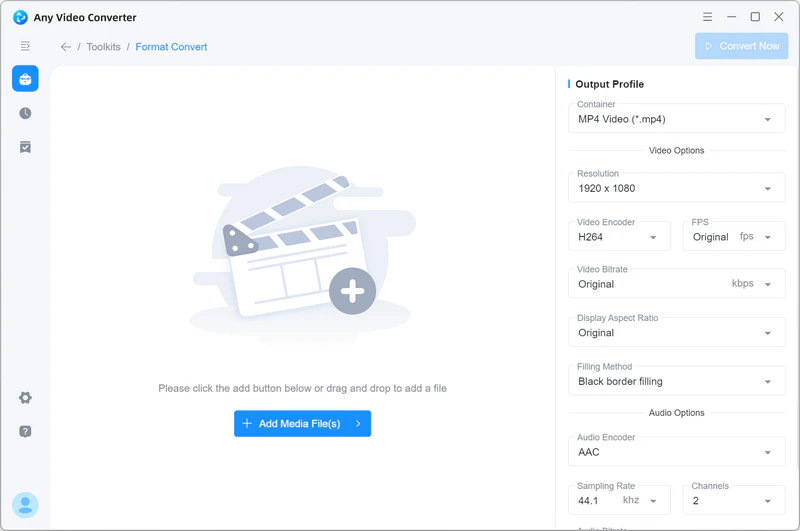
You can directly drag and drop files into the program or click "Add Media File(s)" to upload your video files.
Step 2 View Audio Track Details
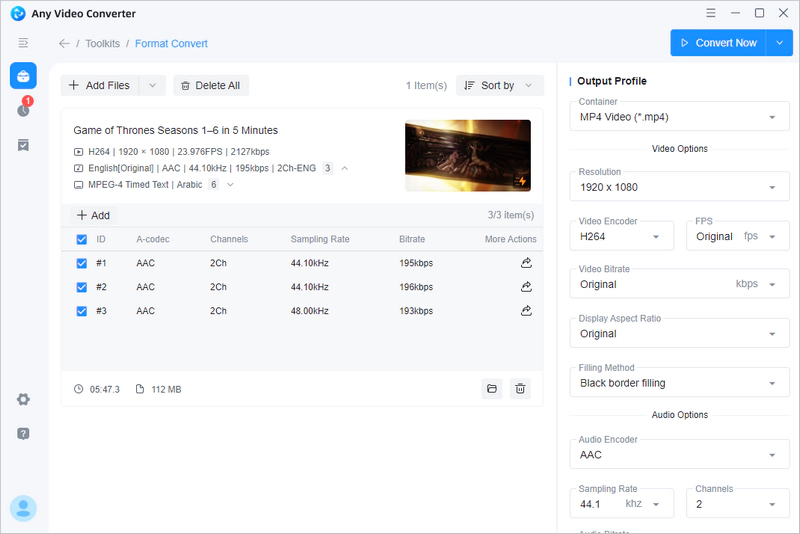
Click the " " to expand all audio tracks contained in the video.
Select/Delete Audio Tracks: From the expanded options, check the audio tracks you wish to keep. If you want to remove a specific audio track, simply uncheck it.
Export Individual Audio Tracks: Click the " " located at the far right of each track; then, click "Save" in the pop-up window to extract the background music or voiceover as a separate audio file.
Add External Audio Track: If you wish to add a new audio file to your video, click the " " button located in the top-left corner of the list. After selecting your audio file in the pop-up window, it will be merged into your video as a new track.
Step 3 View Subtitle Details
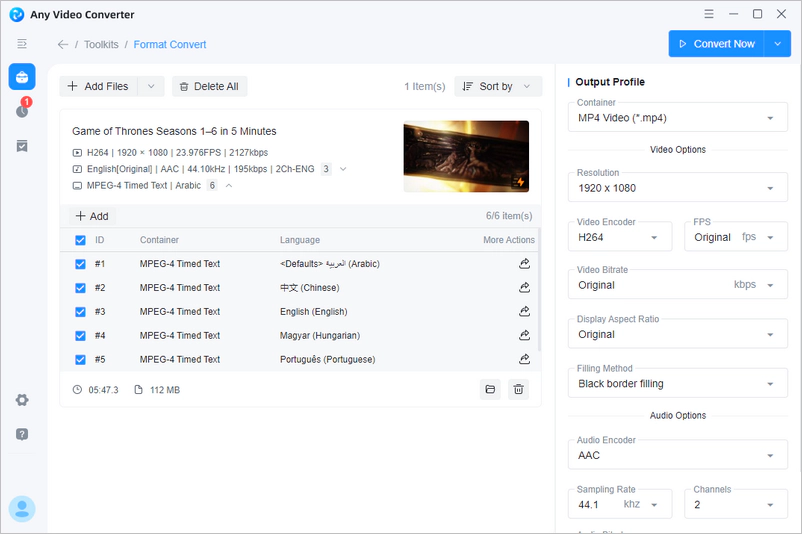
Just like with audio track editing, click "" to expand the detailed subtitle list.
Select/Delete Subtitles: In the expanded subtitle list, you can view all subtitle tracks embedded within the video. Check the boxes to decide which subtitles to keep or delete.
Extract Subtitles: An export icon "" is located at the far right of each subtitle track. Click it to individually extract and save that specific subtitle track locally.
Add External Subtitles: Click the "" button to import a local subtitle file from your PC (.srt, .ass, etc.) and merge them into the video.
Step 4 Convert Video Files
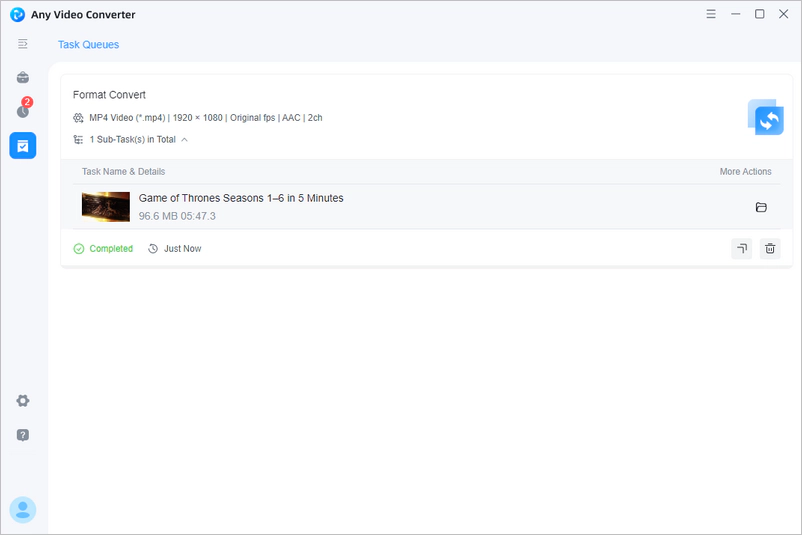
Set the overall file parameters (format, resolution, codec, bitrate, etc.) in the "Output Profile". Click the "Convert Now" button, and the program will perform the conversion based on your settings.