Free DVD Ripper and Converter
Converting DVDs to MP4 makes them easier to play on phones, tablets, smart TVs, media players, and cloud storage services. Instead of relying on a physical DVD drive, you can preserve your DVDs as digital video files with better compatibility and easier backup.
Any Video Converter V9 now supports converting DVD to MP4 and other digital formats for free. If you have home-made, personal, unprotected DVDs, or DVDs you have the right to rip or convert, download Any Video Converter right now to convert them to digital formats.


Highlights of the DVD Converter Tool of Any Video Converter
Convert DVDs to MP4 with broad device compatibility
Preserve subtitles and surround soundtracks
Skip menus, trailers, and short clips
Rip old DVDs and enhance them to HD or 4K with AI
Video Tutorial: How to Rip DVD to MP4 for Free [2026 Tutorial]
How to Convert DVDs to MP4 with Any Video Converter
Step 1 Add a DVD to Any Video Converter
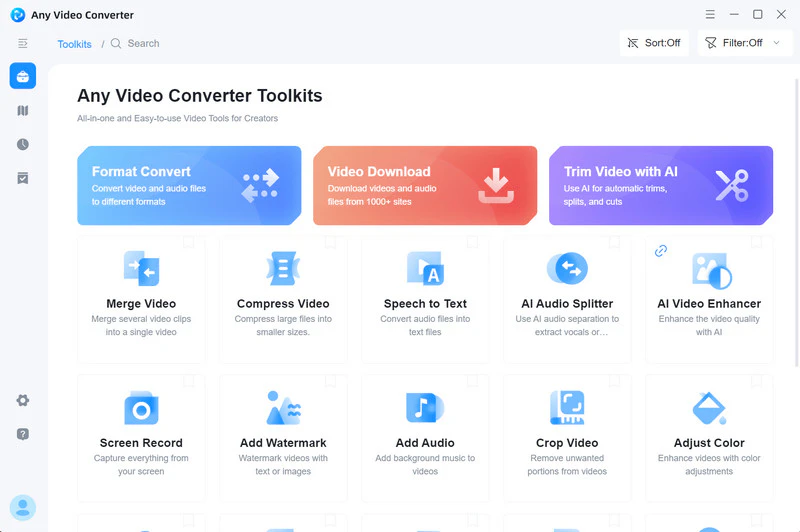
Insert your DVD into an internal or external DVD drive. Once the drive is connected and recognized by your computer, launch Any Video Converter and open the "Format Convert" tool.
⭐ Note: In this tutorial, we use an external DVD drive as an example.
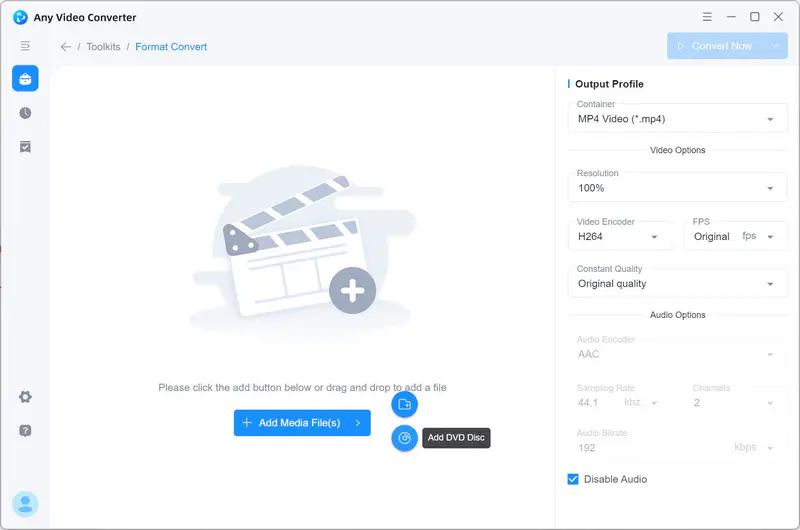
In the main interface of the Format Convert tool, click "Add DVD Disc". Select the DVD drive from the pop-up window, then click "Add" to start scanning the DVD.
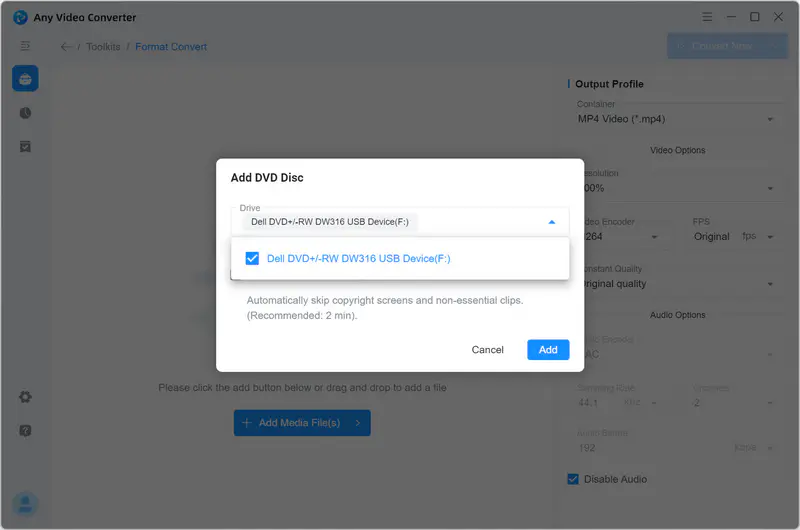
⭐ Tips: Before scanning, you can enable "Automatically skip copyright screens and non-essential clips (Recommended 2-min)" so that short titles such as menus, intros, trailers, and bonus clips can be filtered out automatically during scanning.
Step 2 Select Subtitles and Audio Tracks
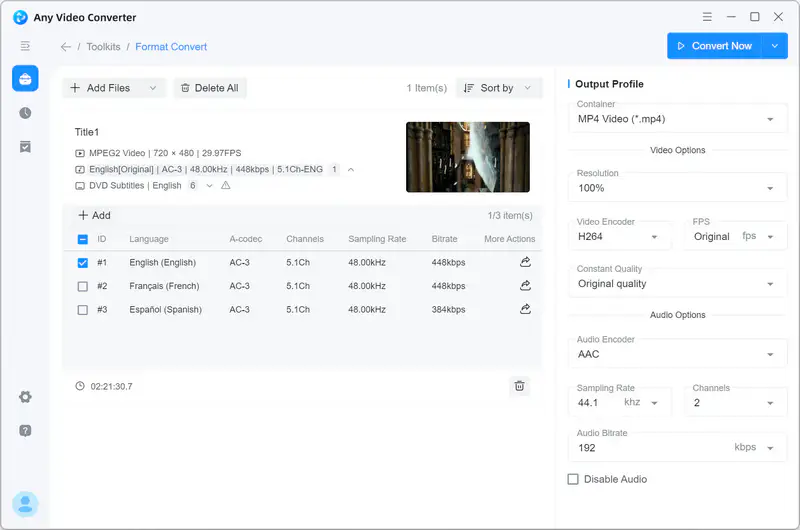
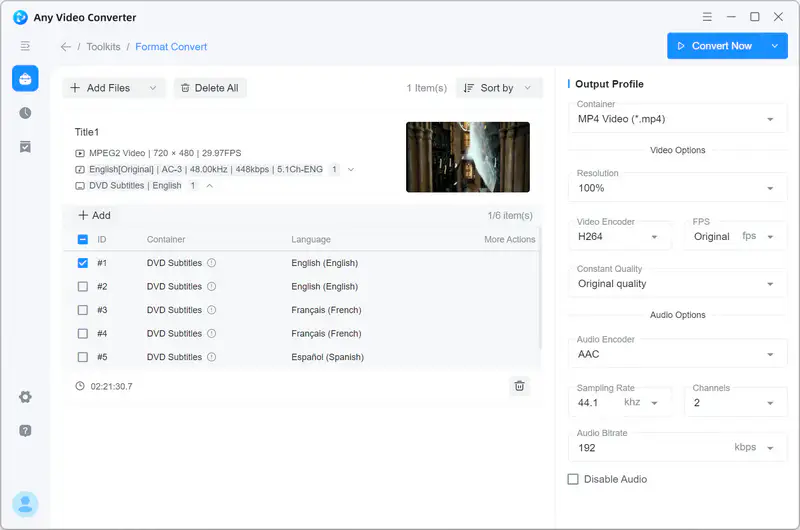
After scanning, all available titles, or only the filtered main titles, will be displayed. For each title, you can choose which subtitle and audio tracks you want to keep in the final MP4 video.
Step 3 Select MP4 as the Output Format
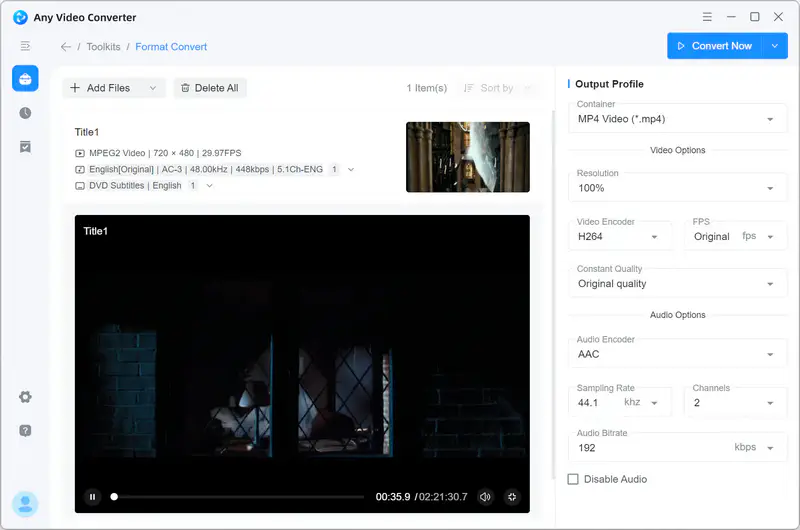
Under "Output Profile", select "MP4 Video (*.mp4)" as the output format, then customize the output settings if needed. For most users, the default settings already provide a good balance between quality, file size, and compatibility.
- Resolution. Keep "100%" to preserve the original quality and avoid distortion, pixelation, or blurriness.
- Video Encoder. Currently, "H264" is the most balanced choice for quality, file size, and compatibility.
- FPS. Keep "Original".
- Constant Quality. Keep highest or balanced quality.
- Audio Encoder. Choose AAC for the broadest compatibility, AC3 to keep Dolby Digital 5.1 surround, or Auto (Match Source) to leave the original audio untouched.
- Sampling Rate. 48 kHz or 44.1 kHz
- Channels. Choose "2" channels for the best compatibility with phones, tablets, and web playback, or "5.1" channels to preserve the original surround sound.
- Audio Bitrate. 160-192kbps for AAC, or 320-448kbps for AC3.
- Advanced Options. Click
 icon to adjust the advanced settings, such as scan type, aspect ratio, scaling mode, bitrate mode, encoding passes, and more.
Step 4 Start converting DVD to MP4
After completing all settings, click "Convert Now" to start converting the DVD to MP4 for free with Any Video Converter. The program supports GPU acceleration to improve DVD conversion performance and efficiency.
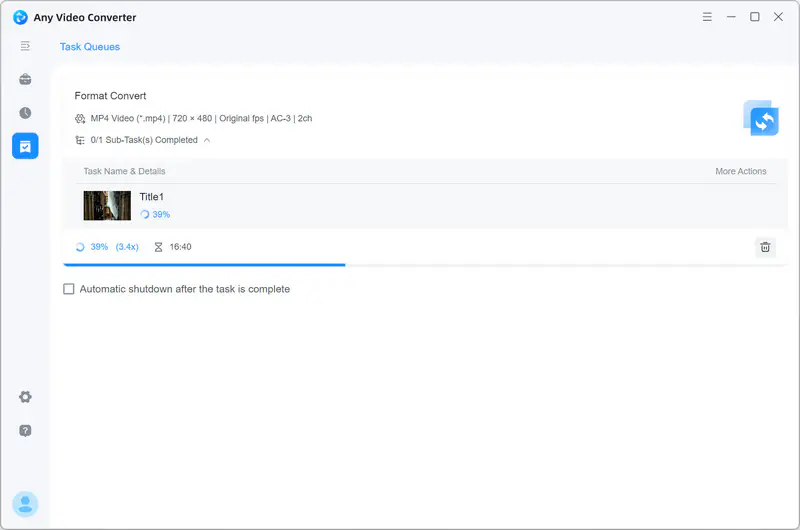
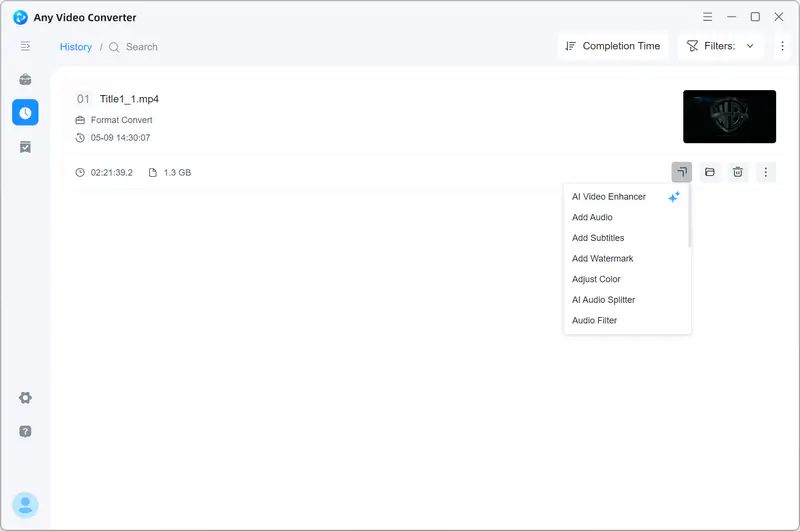
Once the conversion is finished, you can open  tab to locate the converted MP4 video. If the original DVD quality looks outdated on modern displays, you can further improve it with the built-in AI Video Enhancer tool.