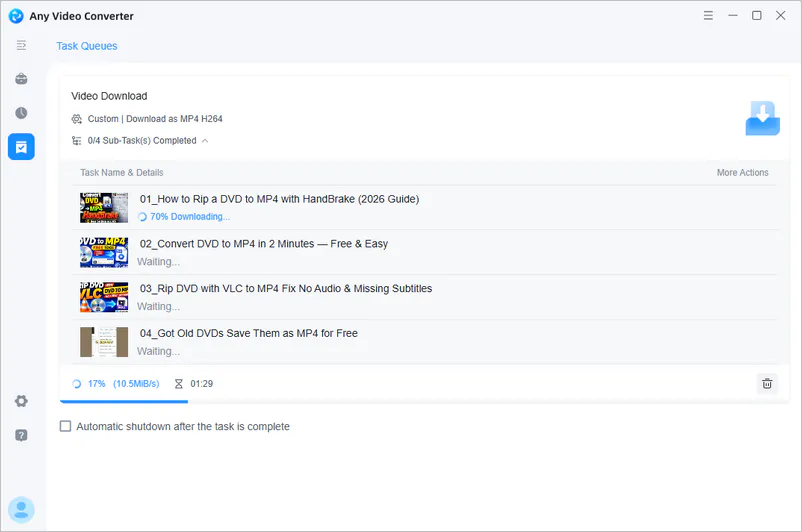
Smart File Naming for Video Downloads
Downloaded videos can be automatically renamed based on information such as the video title, source website, resolution, and more. You can choose which information to include, arrange the order, and customize separators and other naming rules to create filenames that are easier to identify and organize.


How Automatic File Renaming Works
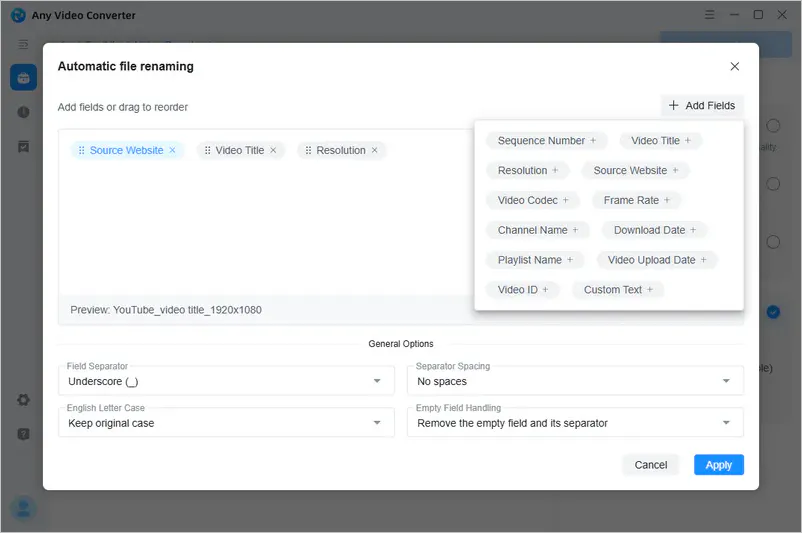
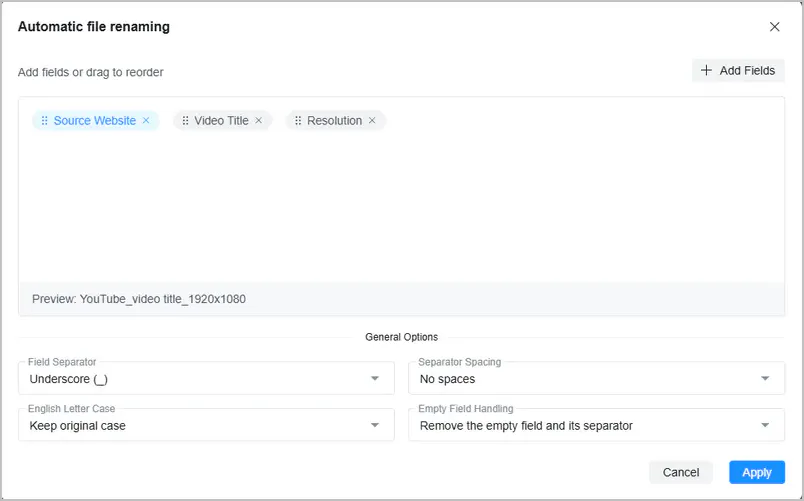
'Automatic file renaming' creates filenames by combining the video information you choose. For example, select:
- Source Website + Video Title + Resolution
Then set Field Separator to Underscore (_). A downloaded video could be named: YouTube_video title_1920x1080
The fields are added to the filename in the order shown. Simply drag them to change the order. For example:
- Video Title + Resolution + Source Website
The filename will become: video title_1920x1080_YouTube
Available File Naming Fields
Choose from the following fields to decide what information appears in your downloaded filenames.
- Video Title
- Resolution
- Source Website
- Sequence Number
- Frame Rate
- Video Codec
- Video ID
- Channel Name
- Playlist Name
- Download Date
- Video Upload Date
- Custom Text
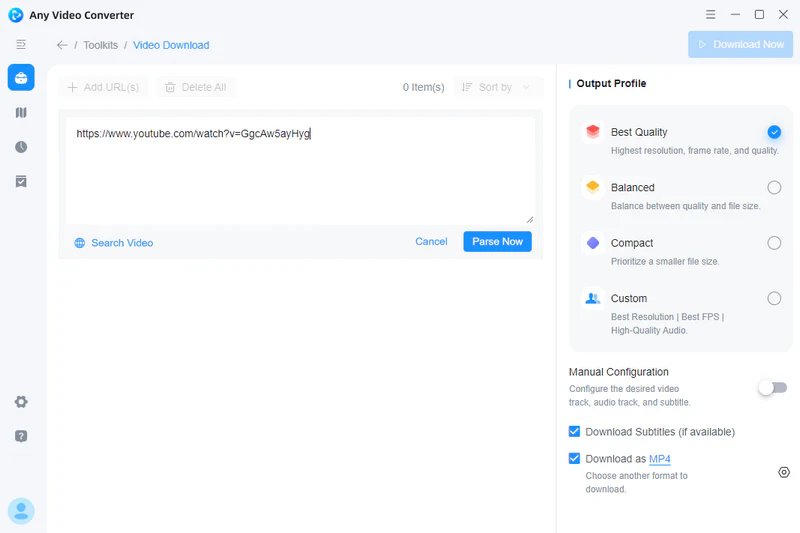
In the Video Download tool, click the ' ' icon next to 'Automatic file renaming' to access the specific settings. Then, click 'Add Fields' to see the information for these fields. You can add multiple fields as needed, or keep only one field.
Automatic File Naming Examples
Example 1: Use the Video Title
Use the original video title when you want to keep filenames simple.
- Fields: Video Title
- Result: Source video title
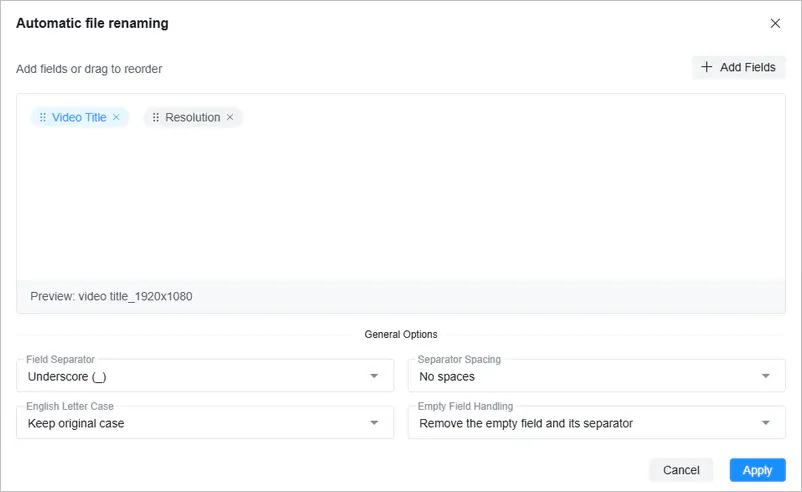
Example 2: Add the Video Resolution
Add the resolution when downloading the same video in different qualities, so you can easily tell the files apart.
- Fields: Video Title + Resolution (The order can be adjusted)
- Field Separator: Underscore (_)
- Result: Source video title_1920x1080
Example 3: Include the Source Website
If you download content from multiple video websites, you can identify the video source by adding the website to the filename.
- Fields: Source Website + Video Title + Resolution (The order can be adjusted)
- Field Separator: Underscore (_)
- Result: YouTube_Source video title_1920x1080
Example 4: Keep Playlist Videos in Order
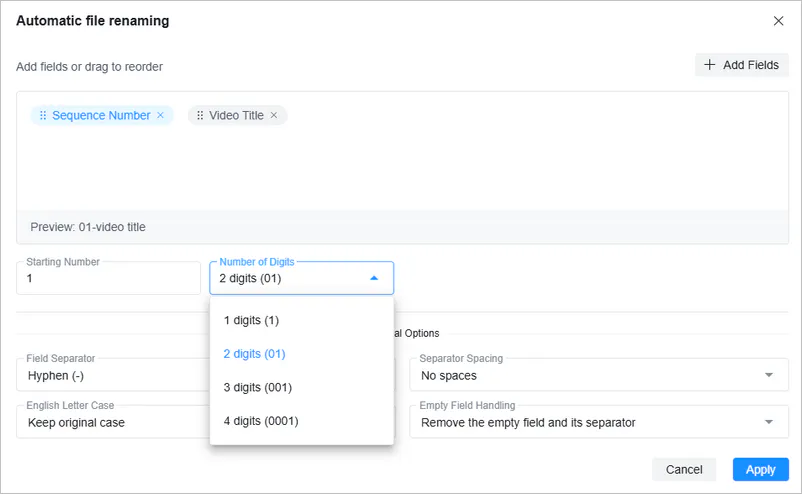
Add a sequence number to keep playlist, course, or series downloads in the correct order.
- Fields: Sequence Number + Video Title (The order can be adjusted)
- Field Separator: Hyphen (-)
- Result: 01-Source video title 1 / 02-Source video title 2 / 03-Source video title 3
Example 5: Add Custom Information
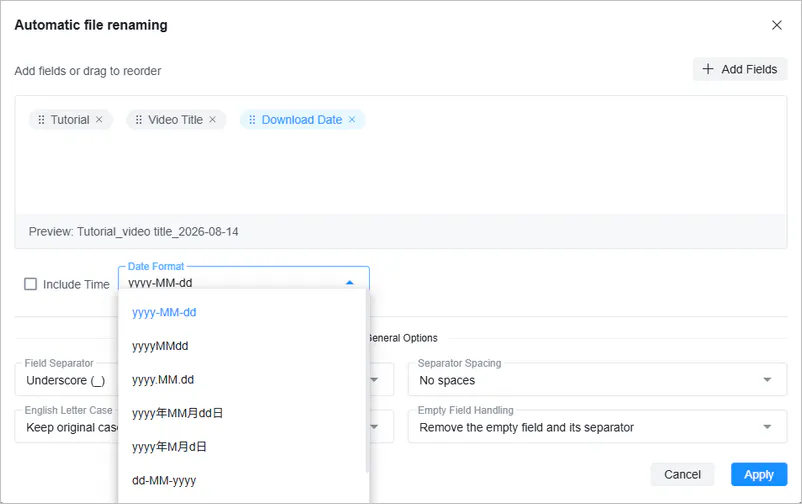
You can add fields for different types of download content using custom text.
- Fields: Tutorial (Custom Text) + Video Title + Download Date
- Field Separator: Underscore (_)
- Result: Tutorial_Source video title_2026-08-14
Customize Your File Naming Rules
In addition to adding fields to filenames, you can also further customize filename styles.
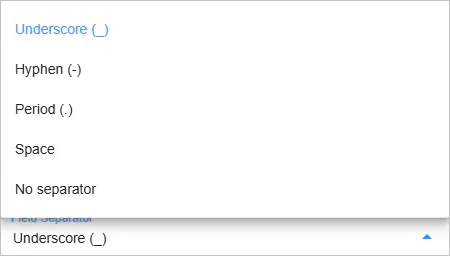
Choose a Field Separator
After choosing the fields, you can customize how they are formatted in the filename.
- Underscore (_)
- Hyphen (-)
- Period (.)
- Space
- No separator
For example, using the same fields: Video Title + Resolution, different delimiters will produce different results:
- Source video title_1920x1080
- Source video title-1920x1080
- Source video title.1920x1080
- Source video title 1920x1080
- Source video title1920x1080
Set Separator Spacing
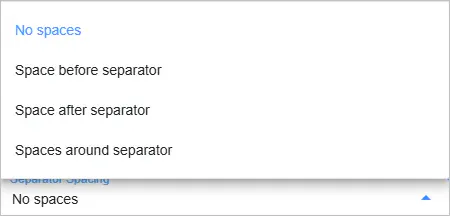
The Separator Spacing setting determines whether spaces are added before or after the separator. Options include:
- No spaces
- Space before separator
- Space after separator
- Spaces around separator
For example, when the separator is Hyphen (-):
- No spaces: Source video title-1920x1080
- Spaces around separator: Source video title - 1920x1080
Change English Letter Case
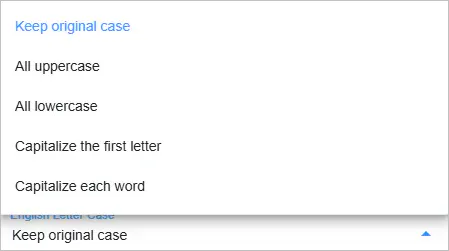
The 'English Letter Case' feature allows you to adjust the capitalization of English letters in filenames. Options include:
- Keep original case
- All uppercase
- All lowercase
- Capitalize the first letter
- Capitalize each word
Handle Missing Information
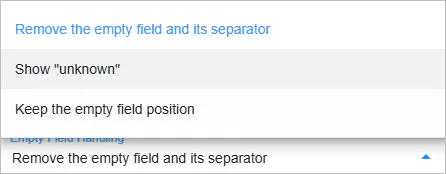
Some videos may not have all the information you add to the naming rules. For example, you might add "Resolution" to the filename, but some downloaded content may not have available resolution information. 'Empty Field Handling' allows you to configure how missing information is handled. Options include:
- Remove the empty field and its separator: Removes the missing field and the extra separator.
- Show "unknown": Replaces the missing value with "unknown".
- Keep the empty field position: Keeps the position reserved for the missing field.
Preview and Apply Your Naming Rules
Check 'Preview' to see how the filename will look with your current settings. Once you're satisfied, click Apply to save the naming rule. Future downloads will automatically use the new filename format.