Contents of How-to Guides

How to Merge Multiple Audio Files with Any Audio Converter
If you have multiple songs, audio recordings, podcast episodes, or voice clips and want to combine them into a single audio file, you can use the Any Audio Converter Merge Audio feature. It allows you to merge multiple audio files, arrange the playback order, and create a complete audio track without quality loss. Here is how to use Any Audio Converter to merge audio files quickly and easily.


Step 1 Open the 'Merge Video' Tool
Once installed, launch Any Audio Converter and select the 'Merge Video' tool. This tool can also merge multiple audio files.
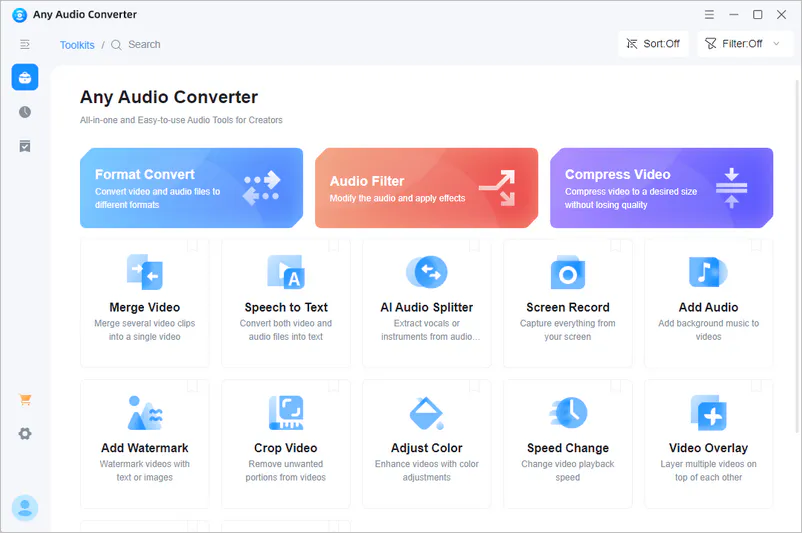
Step 2 Add Audio Files & Edit Audio Settings
Click the '+ Add Files' button or drag and drop to import multiple audio files. After adding the audio files, you can drag them in the timeline or file list to adjust their playback order. Then, click 'Normalize Audio' to maintain audio quality.

Step 3 Save the Merged Audio
Click the 'Merge Now' button to combine your audio files into one track. Once the process is complete, you can access the merged audio file and continue editing it with other audio tools if needed.