

Free Video Compressor for Email
Compress a large video to the target size to send via email
- 100% free, unlimited and batch video compression without quality loss
- Specify the target size to make the video smaller for email
- Advanced video codecs (AV1, H264, H264) for video compression
- Preset compression strategies for smart video compression
- Built-in video editing tools (trim, split, track editor) to make a video smaller
 100% FREEUnlimited High Quality GPU Accelerated

 Switch to Mac Version
 Switch to Windows Version
Compress Video to Reduce Size Online Free
Compress your MP4, MKV, MOV, and 1000+ video formats to an email-friendly size for free
Maximum file size: 80 MB
-
Choose a compression strategy
Choose a preset and start compression
Compressing your video
Preparing file...
Preparing compression...
- Features
- User Guide
- FAQ
- Tech Spec
-
 Any Video Converter Free
 -

Compress to Make Large Video Files Smaller for Email
Compress large videos securely, efficiently, and for free
Compress MP4 Files for Email
With the broad support for most video formats, including MP4, MKV, MOV, WEBM, and 1000+ formats, Any Video Converter's video compressor tool can handle almost all files you import.
Set Email-Friendly Size: 20-25 MB
Most email services, like Gmail, or Outlook, limit attachments to around 20-25MB. If your video is larger than that, the mail may fail to send or ask you to upload the video to the cloud drive. To make video sharing via email easier and more efficient, you can use Any Video Converter to compress the video to a target size of 20-25 MB directly, making it more friendly for email.
Faster, Unlimited, and Batch Video Compression
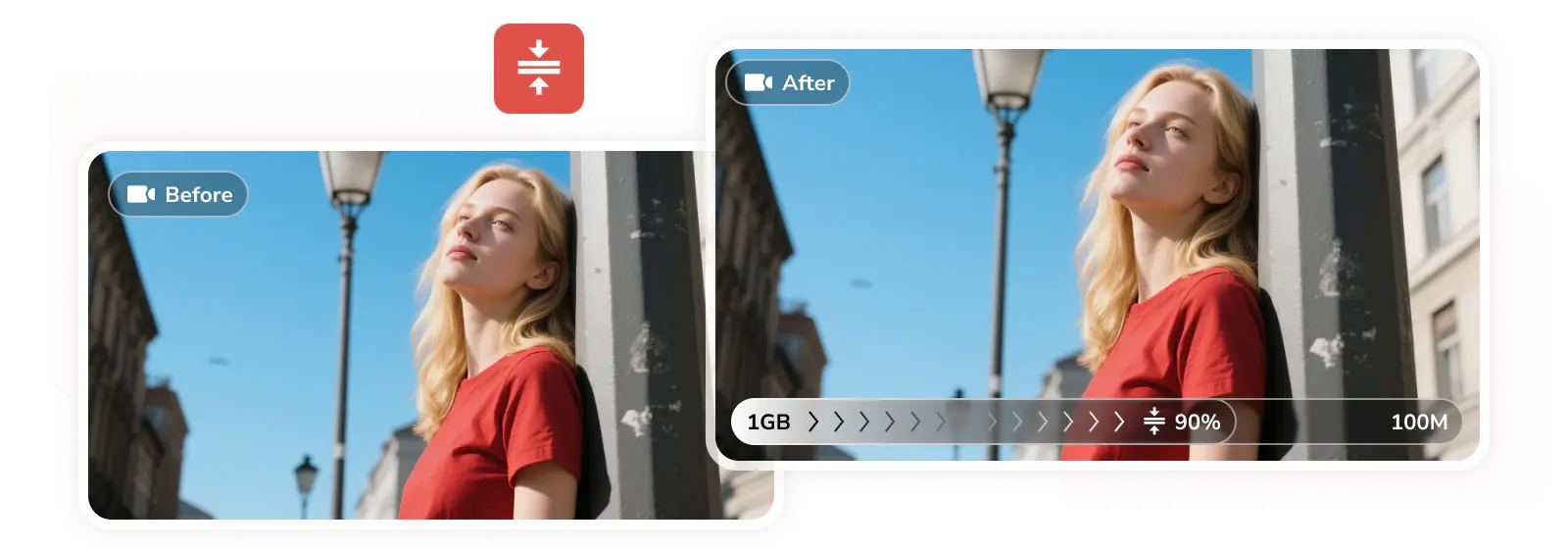
Unlike many online video compressors that limit upload size or paid video compression software that restrict the number of compression, Any Video Converter is completely free for batch video compression, without any compression or conversion limits.

More Tools to Shrink Video
With built-in free video editing tools, you can further reduce your video file size and make it easier to attach to an email, like video converter, trimmer, cropper, track editor, and more.

Why Choose AVC Video Compressor to Reduce Size for Email

Free & No Watermark
A truly free video compressor that lets you reduce video file size with no hidden fees and no watermark.

Unlimited Compression
You can compress videos of any size for free, with no daily compression limits or video size limits.

Smart Compress Strategy
Pre-made compression strategies, including balanced, keep FPS, keep resolution, and quality first.

Specify Size for Email
You can set an email-friendly target size directly, with no complicated settings required.

Privacy Security
All compression tasks are processed locally on your device, with no uploads or file storage.

Faster Compression
Compress videos 30x faster with GPU acceleration and efficient codecs such as AV1, H.265, and H.264.
How to Compress a Video File for Email for Free
Step 1
Import Video Files
Open the 'Compress Video' tool in Any Video Converter and click '+ Add Files' to import the video files you want to compress for email.
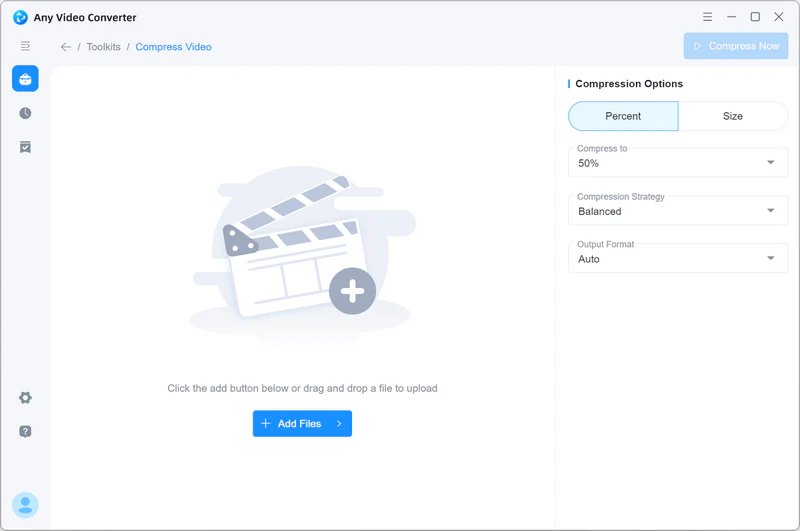
Open the 'Compress Video' tool in Any Video Converter and click '+ Add Files' to import the video files you want to compress for email.
Step 2
Set the Target Size for Email
Under the 'Compression Options', you can set the target size to 20 or 25MB, which is perfect for an email attachment, and choose your desired compression strategy (Balanced) and output format (MP4 H264).
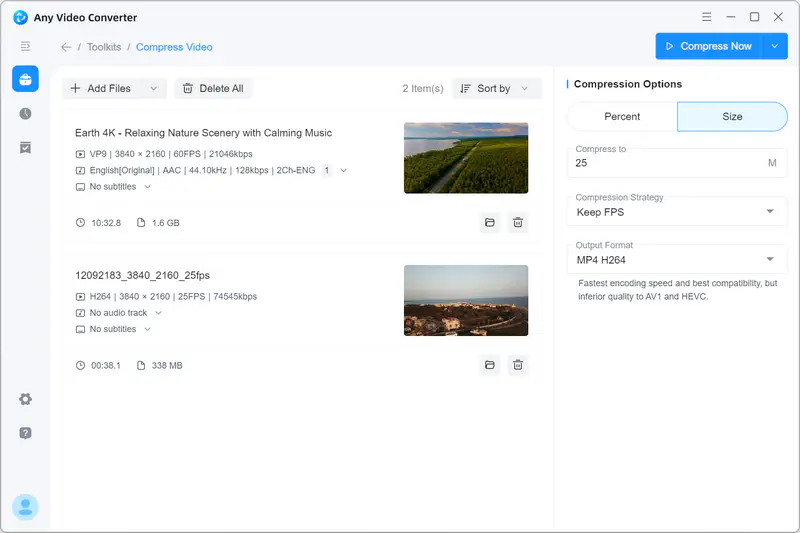
Under the 'Compression Options', you can set the target size to 20 or 25MB, which is perfect for an email attachment, and choose your desired compression strategy (Balanced) and output format (MP4 H264).
Step 3
Compress Video to Target Size (25MB)
Click the 'Compress Now' button to start compressing the video for email.
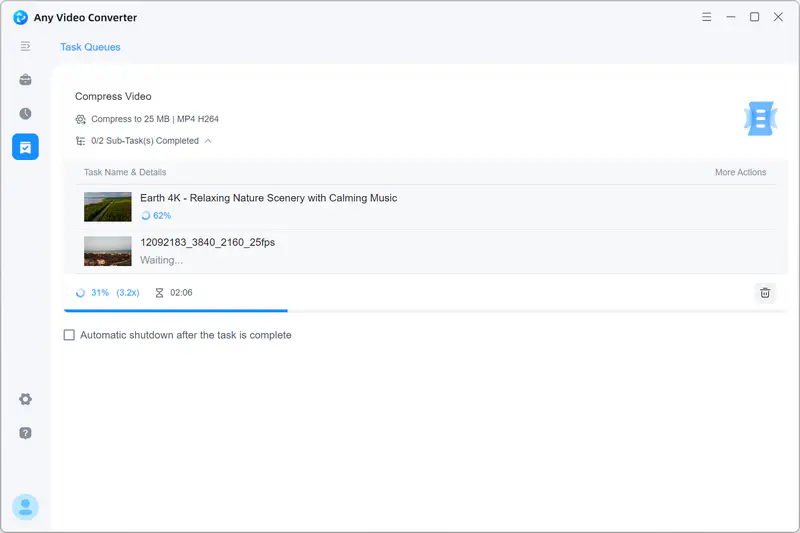
Click the 'Compress Now' button to start compressing the video for email.
Trusted by Millions of Users Worldwide
See what users say about this video compressor for email attachments
As a devoted user of AVC for over 15 years, I have witnessed its evolution and stood by it through thick and thin.

Love this software. It has allowed me to make and convert videos to share with friends and family. I will never use any other video software again.
Any Video Converter emerges as an exceptional choice for video enthusiasts seeking a unified solution. Its multitude of features offers a seamless experience by consolidating various video-related tasks into a single, user-friendly platform. Whether it is video conversion, downloading, resizing, or more, this software encompasses all essential functionalities, catering proficiently to both novices and advanced users.
I appreciate again the excellent customer service and will be happy to recommend Any Video Converter as a great video editing tool.
Thank you so much for being available for those who are new to technology like me. I got this software to be able to download the video and audios and resize them to the least possible size without changing the quality, to save them and use them when I am not online and do not have access to the net.
I am very happy to use Any Video Converter. This is the best software for my purposes: making small size video, having a queue of multiple converts, popular codecs for WordPress to recognize. Your tool meets all these three criteria, on which 9/10 converters fail somehow.
 4.8 on




Free and Reliable Video Compressor for Any Use
Compress videos more easily with smart presets, simple controls, and a better balance between size and quality

FAQs about Video Compressor for Email
What video format is best for email?
Currently, the industry-standard video format for email is MP4 with H264 codec, as it ensures the fastest encoding speed and best compatibility. Given that most email providers have a 20-25MB file size limit, H.264 is the safest choice.
In the near future, if the AV1 video codec is more compatible with most devices and supported by most hardware, it is expected to be the best video format for email, as it ensures superior compression efficiency and quality than H265 and H264.
To simplify this process, Any Video Converter provides a free video compressor that automates these technical decisions. Users can simply set the target size (e.g., 25MB) and apply the compression strategies (well-made presets for video compression), eliminating the need for manual adjustments to resolution, bitrate, or FPS.
How do I send a large file that's too big for email?
If your video is too large to send via email, zipping it usually won't be very helpful as video data is already compressed. Instead, choose one of the industry-standard methods based on your needs.
Option 1: Upload the extremely large file to the cloud drive
If you want to keep the best visual quality of 4K or HD videos (4K game recordings, high-bitrate aerial footage, sports clips, or cinematic night shots), upload them to the cloud service associated with Gmail or Outlook.
Option 2: Compress large video to email-friendly size
Generally, a 300MB raw recordings can often be compressed to 25MB without losing too much quality. If you have PPT presentations, meeting recordings, or video tutorials that want to send via email, you can use a tool like Any Video Converter, Handbrake, or FreeConvert to shrink the file to 20-25MB.
What's the best way to send a video that is too long by email?
If the video is too long to send via email, generally the long-form video, cloud sharing, or file hosting is usually the best option, as this kind of video usually can not be reduced to 25MB with acceptable quality. If you still want to email it directly, try to trim the long video to delete the unnecessary parts. You can use the trim tool in Any Video Converter to delete unnecessary parts, as reducing the duration is helpful to reduce the size.
How to reduce the video size to 25MB?
While advanced tools like HandBrake offer more professional-grade controls, they often require complex and skilled manual adjustments to hit a specific size. To simplify this purpose, Any Video Converter (AVC) allows you to set a "Target Size," and the AI algorithm handles the technical bitrates for you.
Here is the 3-step tutorial to reduce the video size to exactly 25MB.
Step 1: Import videos. Open the 'Compress Video' tool and add the videos you want to compress.
Pro Tips: The source video between 300MB and 500MB is the "sweet spot" for shrinking down to 25MB without significant quality loss.
Step 2: Apply the compression options. Navigate to the compression options panel and configure these settings:
Target Size: Set to 25MB.
Compression Strategy: Select Balanced (this ensures a perfect trade-off between speed and clarity).
Video Format: Choose MP4 with H.264
Step 3: Start compression. Click the 'Compress Now' button to compress video to 25MB.
How to compress MP4 video files for email?
This all depends on how big your MP4 is, on a case-by-case basis, as not all MP4 files can or should be reduced to a 25MB attachment. Here are three common scenarios and how to handle them:
Scenario 1: Small to medium files (300MB-500MB)
For the MP4 video in this range, you can easily compress it to 25MB without a noticeable drop in clarity.
Scenario 2: Large 4K files (around 1GB)
For the MP4 video in 4K quality (around 1GB), it is too dense to compress to 20-25MB without specialized adjustments. To keep the video watchable, you can downscale the resolution from 4K to 720p, but keep the original FPS. This can significantly slash the file size while keeping the image sharp enough for video tutorials, conference recordings, or demos.
Scenario 3: Extremely large files (over 2GB)
If your MP4 is larger than 2GB, attempting to compress it to 25MB will result in a "pixelated mess" where the content is barely recognizable. The only professional way to "send" this via email is to upload it to a cloud drive (Google Drive, OneDrive, or Dropbox) and email the shared link.


