Part 1: 2026 Top 4 MP3 Converters for Windows & Mac
The 2 major methods to convert videos to MP3 are professional software and online MP3 converters. We evaluated the MP3 converters mentioned in the article, using common MP4, MKV, WAV, and FLAC files. Our comparison focused on MP3 settings, batch processing capabilities, file size limits, platform compatibility, ease of use, and free-version restrictions. Compared with online MP3 converters, professional software has significant advantages in many aspects:
| Features |
Professional Software |
Online MP3 Converters |
| Speed |
Fast |
Slow |
| Audio Quality |
High |
Limited |
| Privacy |
Secure |
Unknown |
| Batch Conversion |
Supports large file size |
Limits the number and file size |
| Additional Features |
Rich |
Simple |
| Internet Connection |
Unnecessary |
Necessary |
| Application |
Large number of files, large file sizes, and sensitive files |
Single, small files |
From the table above, you can clearly see that professional software is safer and more reliable when converting videos to MP3. Therefore, this section will share the 4 most popular MP3 converters for Windows and Mac in 2026.
Does Converting to MP3 Lose Quality?
MP3 is a lossy format. Even at 320 kbps, converting WAV, FLAC, or AAC to MP3 discards some audio data, and converting a low-bitrate file to 320 kbps cannot restore detail that was already lost.
320 kbps MP3 can preserve the available source quality well, but it is not lossless. For the best results, choosing a bitrate that matches the source quality.
1. Any Video Converter
No file size limit Batch convert to MP3 Adjustable audio settings Offline MP3 conversion
More conversion settings require the desktop version
Any Video Converter is the best free MP3 converter to convert your video to a wide range of formats like AVI, MKV, MP4, WMV, MOV, MPEG, 3GP, ASF, FLV, VOB, WMA, and more than 1000 formats. With this Free MP3 Converter, you can convert video to almost all kinds of video formats for playing on various multimedia players such as iPad, iPod, iPhone, Apple TV, PS5, Xbox One, Android phones, and more portable devices.
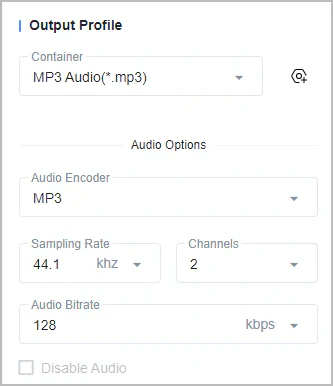
The "Auto (Match Source)" option automatically matches the encoding format of the source file to preserve the original sound quality as much as possible. If the source encoding format is incompatible with the selected output container format, the program will automatically switch to the closest compatible alternative. For users who are unsure which encoder to choose, this feature makes local MP3 conversion much simpler.
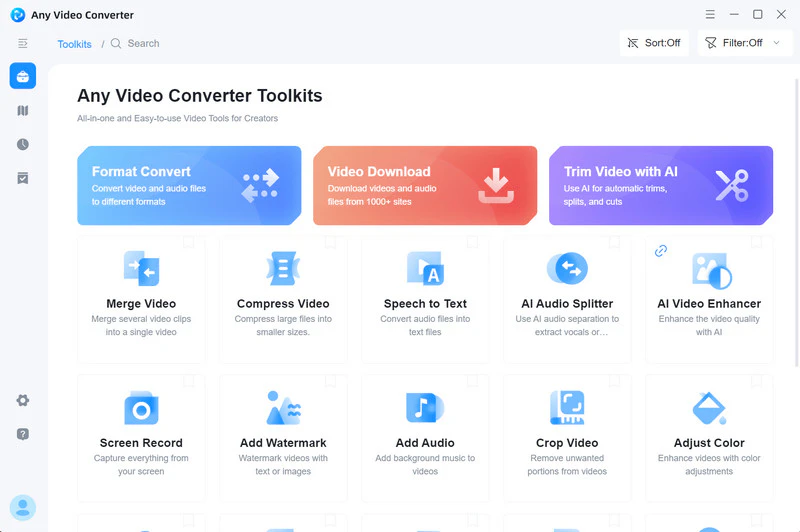
Plus, Any Video Converter is more than an MP3 converter. It combines an audio splitter to separate vocals and instrumentals, a speech to text converter to transcribe audio files to text, and more audio editing tools.
Want to download online videos directly as MP3? Jump to Part 3 for the direct video to MP3 download method.
Key Features of Any Video Converter
- Supports almost all mainstream video/audio formats.
- Lightning-fast conversion speed with GPU processing.
- High-quality audio in the conversion process.
- Customizable parameters, high-quality encoding engine.
- Rich toolbox: AI Trimmer, Audio Merger, etc.
How to Convert Local Videos to MP3 with Any Video Converter
Step 1 Run Any Video Converter
Please download and install Any Video Converter. Then run this free MP3 converter.
Step 2 Añadir vídeos o archivos de audio
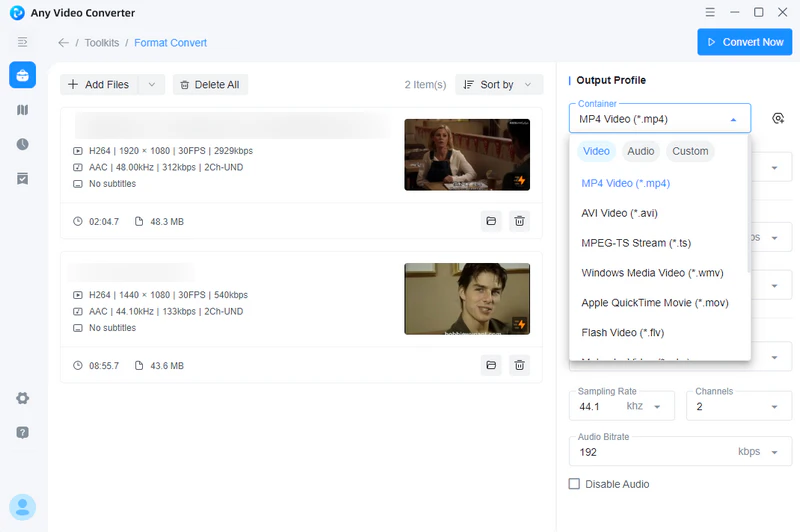
Choose the "Format Convert" tool. Then, add one or multiple videos and audio files for converting. Supported input formats include MP4, AVI, 3GP, MP3, OGG, and more. Check the supported input formats.
Step 3 Configure Output Settings
Choose "MP3" Audio from the Video Format drop-down list. Configure audio options like audio encoder, audio bitrate, sampling rate, and channels. If you are not familiar with audio parameters, select Auto (Match Source).
Step 4 Start Converting to MP3
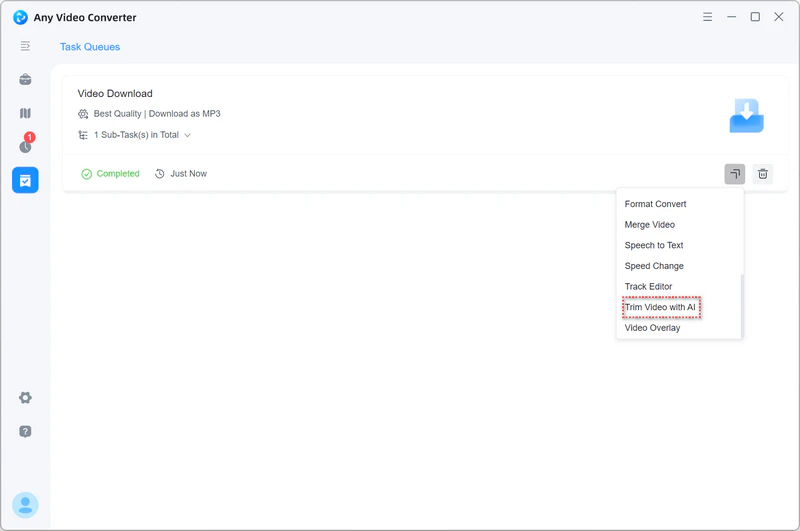
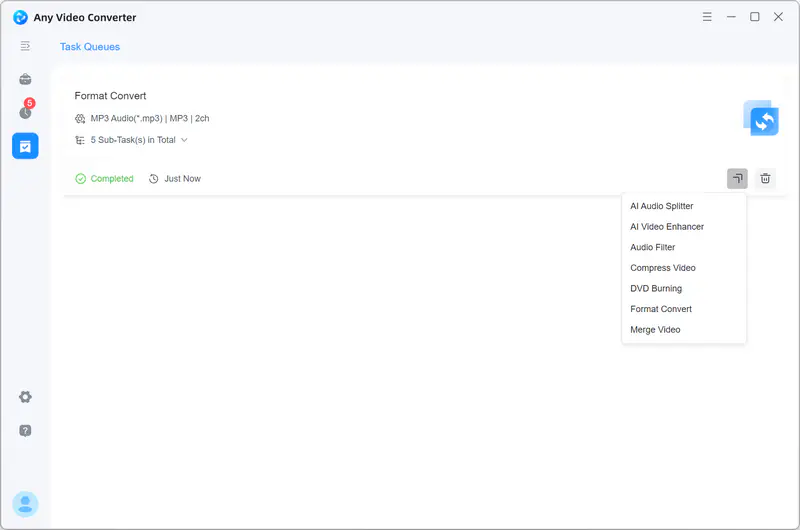
Click the "Convert Now" button to start converting your videos or audio files to MP3. Once the conversion is finished, you can click the folder icon to check the converted MP3 file. You can also jump directly to the AI Audio Splitter to edit your audio.
2. VLC Media Player
Free & open source Wide format support Cross-platform Built-in media player
Complicated MP3 settings Less beginner-friendly
VLC Media Player is a universal player that can play almost all kinds of videos and can work on Windows, Mac, Linux, Android, and other operating systems. It is also capable of converting files between different formats. You can also preview the output during the conversion process. However, VLC Media Player does not have a video trimming feature.
Steps to Convert Video to MP3 Using VLC Media Player:
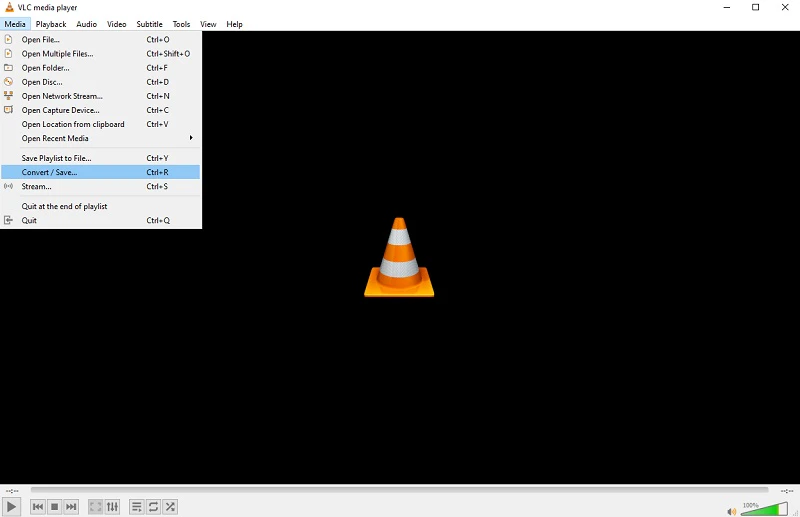
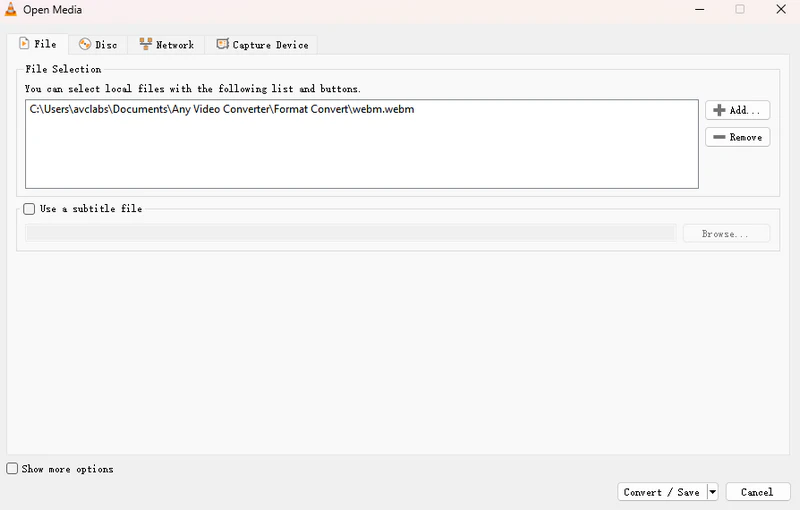
Step 1: Open VLC and click on Media → Convert/Save on the menu.
Step 2: Add the video file you want to convert.
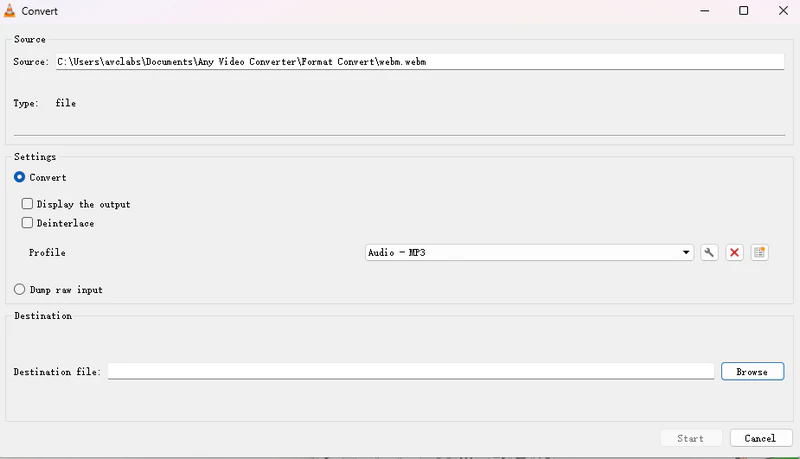
Step 3: Click "Convert/Save" to select "Audio - MP3" as the profile.
Step 4: Choose a destination for your converted file and hit "Start".
3. Wondershare UniConverter
Free Trial Built-in MP3 Downloader Custom Bitrate
1/3 length limit in the free trial Full batch conversion requires upgrade
Wondershare UniConverter integrates a variety of practical video tools such as video downloading, recording, compression, editing, and DVD burning. You can add hundreds of video files at a time, and this MP3 converter will automatically queue and convert them, which is much more efficient than manually converting them one by one to MP3.
While Wondershare UniConverter offers a free trial, you can only convert one-third of the video (Any Video Converter can convert the entire video for free).
Steps to Convert Video to MP3 Using Wondershare UniConverter:
Step 1: Open the software and click the "Add File" button.
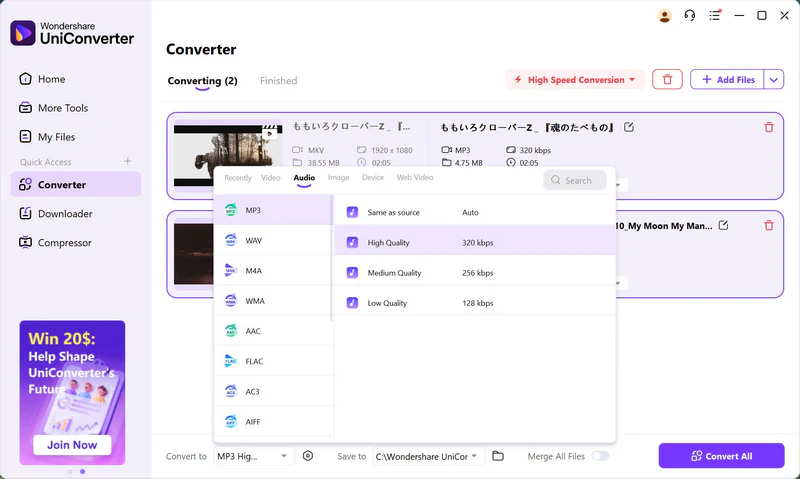
Step 2: In the Converting window, click the Settings button at the bottom and select the MP3 format. You can usually also select the audio quality (such as 320 kbps High Quality).
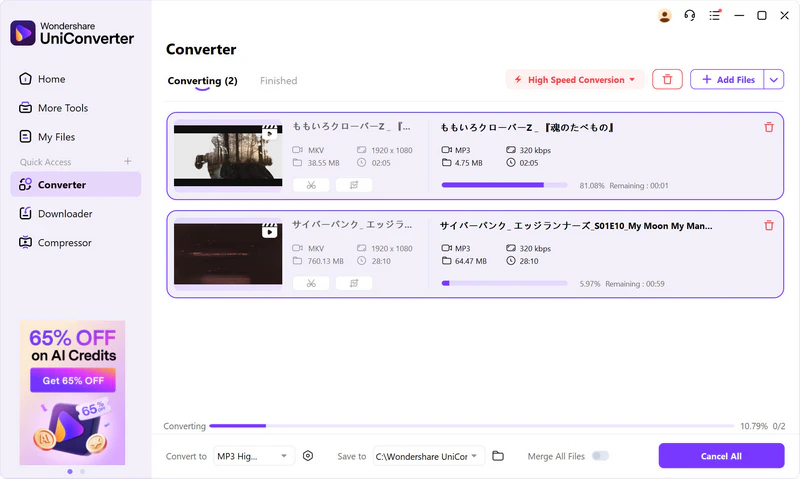
Step 3: Click the "Convert All" button and wait for the conversion to complete.
4. Movavi Video Converter
Easy format selection Straightforward MP3 conversion workflow
7-Day free trial only Full access requires purchase
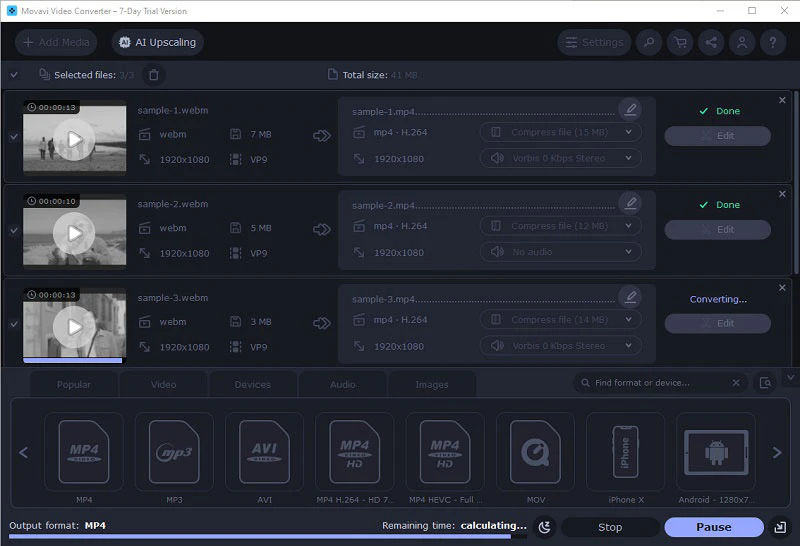
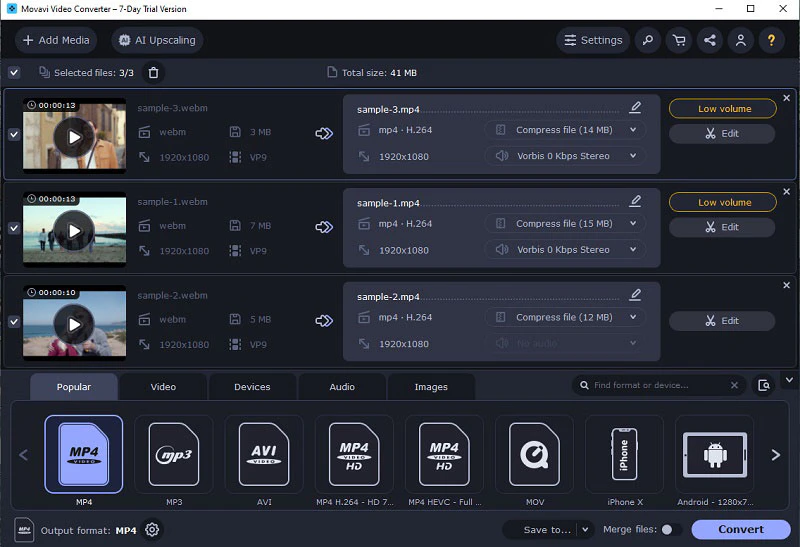
Movavi Video Converter is desktop audio and video conversion software. It's renowned for its clean, intuitive interface and exceptionally simple operation, making it easy to use even for beginners. All features and buttons are clearly outlined. The process of adding files, selecting a format, and starting the conversion is smooth and straightforward, with virtually no learning curve, making it ideal for beginners.
The biggest problem is that after a 7-day free trial, you will be forced to purchase an activation key.
Steps to Convert Video to MP3 Using Movavi Video Converter:
Step 1: Open the software, click the "Add Media" button, and then select "Add Video".
Step 2: Select the "Audio" tab below, then find the "MP3" in the list.
Step 3: Click the "Convert" button in the lower-right corner. The software will automatically begin processing.
Part 2: 2026 Top 5 Online Free MP3 Converters
Although online MP3 converters are not as reliable as professional software, if you just need to convert files urgently, they can be a convenient fallback.
1. FreeConvert
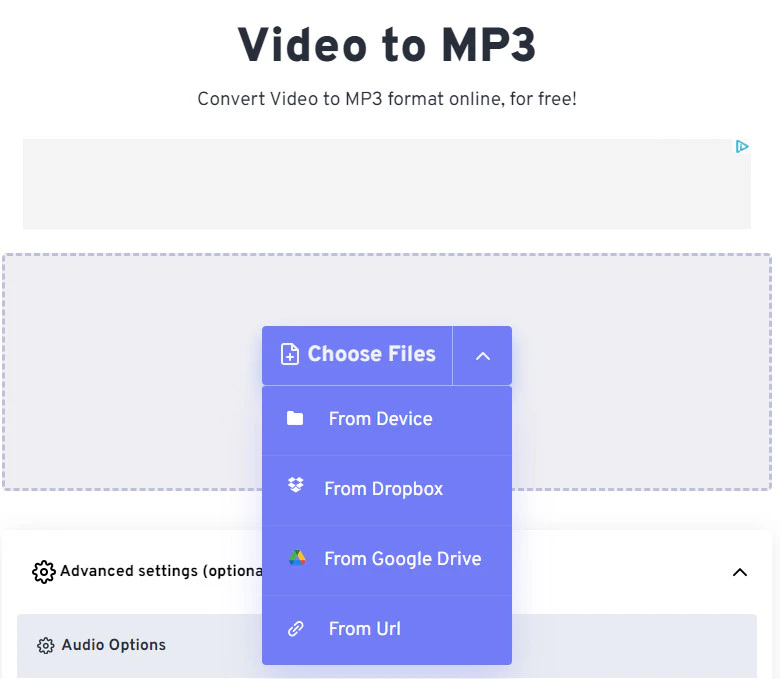
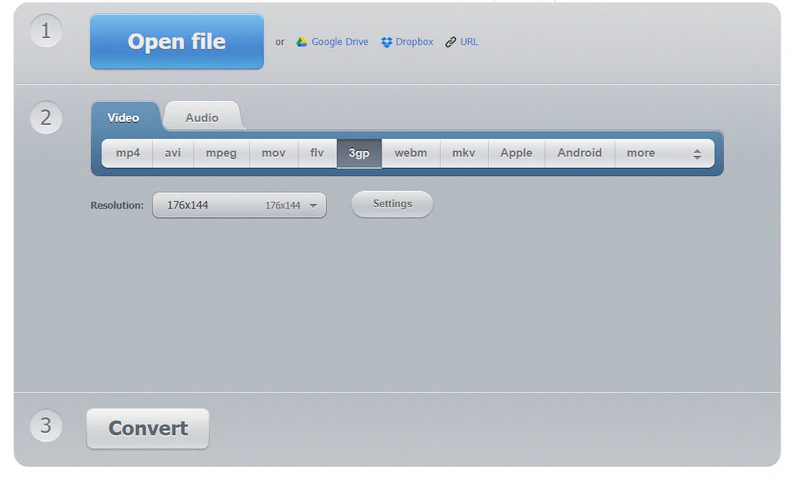
FreeConvert online MP3 converter lets you convert both video and audio files to MP3 without installing software. It supports a wide range of input formats, including MP4, MOV, WAV, FLAC, and OGG. You can also adjust audio settings, such as bitrate and volume, using the "Advanced Settings" menu to customize your MP3 output.
✔️ Upload from Device, URL, Dropbox, or Google Drive
✔️ Adjust audio settings before MP3 conversion
|
|
❌ Uploaded video files are limited to 1GB
❌ You need to download the converted MP3 file
❌ The website displays misleading ads
❌ Converting large files can be really slow
|
|
2. CloudConvert
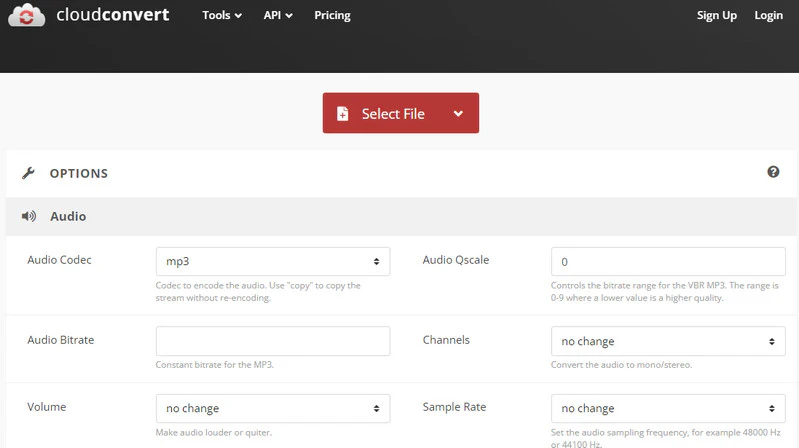
CloudConvert allows you to convert both video and audio files to MP3 directly in your browser. You can upload files from your local device or import them from Google Drive or Dropbox. Before converting, you can customize audio settings, such as bitrate and sample rate, to suit your needs. Since it runs entirely online, CloudConvert works across Windows, Mac, Linux, and mobile devices.
✔️ Fine-tune MP3 bitrate, sample rate, channels, and volume
✔️ Supports MP3, WAV, FLAC, AAC, and many other audio formats
|
|
❌ Extremely dependent on network speed and stability
❌ During peak hours, your conversion tasks will need to queue
❌ Excessively advanced parameters are not user-friendly for beginners
|
|
3. 123apps Online Audio Converter
123apps Online Audio Converter supports over 300 input formats and offers a variety of output formats, including MP3, WAV, M4A, and FLAC. You can adjust settings such as bitrate, sample rate, and channels, as well as edit metadata tags like track title, artist, and album.
✔️ Adjust bitrate, sample rate, and channels
✔️ Edit track titles, artists, and album tags
|
|
❌ Slow when uploading large files
❌ Requires uploading files to online servers
|
|
4. YTMP3
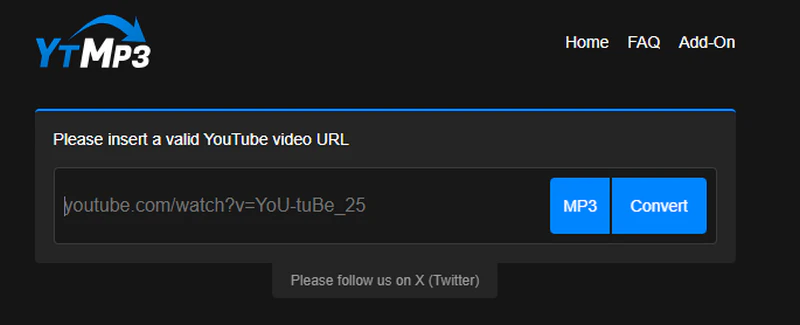
YTMP3 (YouTube to MP3 Converter) primarily helps you download videos from YouTube or directly convert them to MP3 audio files. Simply copy and paste the video link into its website, select the MP3 format, and it will convert it on its servers and provide a download link. However, it's important to note that YTMP3 only converts YouTube links.
 5 Things You Must Know about YTMP3 >>
✔️ Simple YouTube URL to MP3 workflow
✔️ No registration required
✔️ Works directly in the browser
|
|
❌ Batch MP3 conversion is not supported
❌ Audio parameters cannot be customized
❌ Only YouTube links are analyzed
❌ 240-minute MP3 limit
|
|
5. Restream
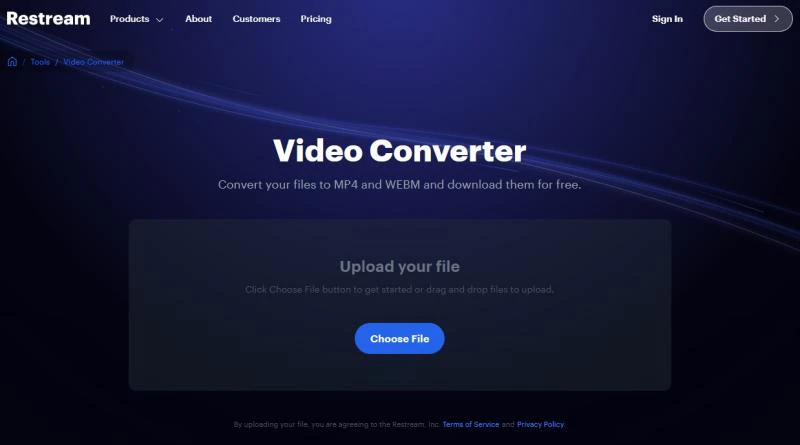
Restream isn't as well-known as FreeConvert and CloudConvert, but it's also a great free MP3 converter for quickly and easily extracting audio from short videos. You can upload any video in WAV, M4A, MP4, MKV, or other formats to the Restream website to convert it to MP3. Currently, Restream supports uploading files up to 2GB.
✔️ Supports uploads up to 2GB
✔️ Extracts MP3 from common video formats
|
|
❌ No batch MP3 conversion
❌ Unable to adjust audio settings
❌ The converted audio quality is uncontrollable
|
|
Part 3: How to Download & Convert YouTube Video to MP3
If you regularly follow a specific YouTube playlist, the "Auto-Download" feature allows you to set up a monitoring task. By selecting MP3 as the output format, Any Video Converter will periodically check for new video uploads, automatically add them to the download queue, and save them as MP3 files.
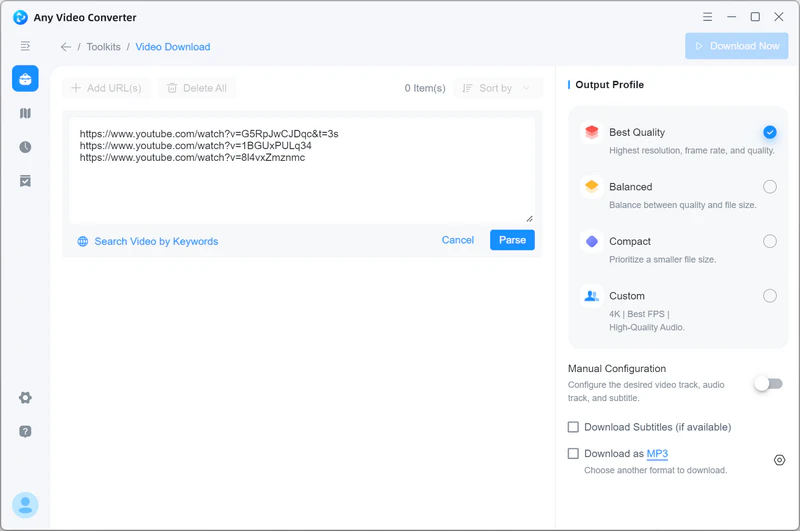
Launch Any Video Converter and choose the Video Download tool.
If you want to download a batch of YouTube videos, click "Add to Parsing List" to add them to your download list. Next, hit the "Parse Now" button.
Click the "Download Now" button to start downloading the videos to MP3 in batch. Once the download is finished, you can click the " " icon to listen to the downloaded YouTube audio.
In short, whether you want to convert local videos to MP3 or download and extract audio directly from YouTube, Any Video Converter is your ideal choice. It not only supports ultra-fast batch conversions and offers flexible audio settings, but also provides powerful editing features without the worry of privacy risks. Best of all, it requires no registration, and has no limits on the number of conversions or file size, making it truly efficient, secure, and convenient.




 " button and search for the video you want to download on YouTube (need to log in to your YouTube account).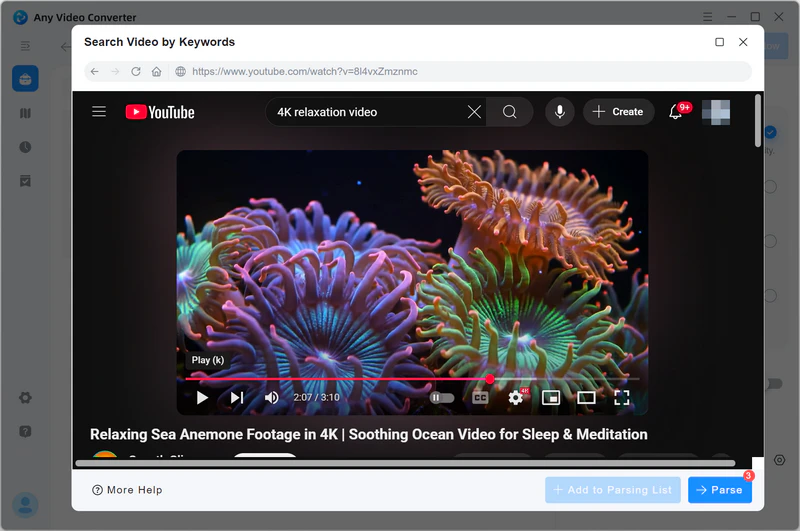
 " button at the bottom to choose "Download as MP3". By default, our software automatically converts YouTube videos to MP3 format with the highest audio quality.