
How to Fix "GPU Crashes or Running out of VRAM" during AI Video Enhancement
Q: Why does my video enhancement process fail due to a GPU crash or running out of memory?
A: This is a common issue known as "VRAM crash" or "blowing up VRAM". It happens when the video enhancement task demands more Video RAM (VRAM) than your graphics card can provide. Here are the possible causes and solutions to ensure your processing tasks run smoothly.
1. Ensure your source video is not in high resolution (4K)
If your source is 4K, the video upscaling process will generate larger intermediate data structures and consume VRAM exponentially. Please make sure the source video is in SD or HD resolution.
2. Choose a lower upscaling factor or resolution
Upscaling video to 400% (4x) requires much more VRAM than 200% (2x). If your GPU crashes or runs out of memory, you can choose the upscaling factor to 100% or 200%.
3. Close background applications
Before starting a video enhancement processing task, close all programs that may consume GPU memory. Other applications using the GPU, such as web browsers with hardware acceleration enabled, video games, live wallpapers, or other AI tasks, can consume significant portions of your VRAM, leaving insufficient resources for the video enhancer.
4. Update your GPU drivers
Ensure you have the latest graphics drivers installed. For AI work, we recommend using the NVIDIA Studio Driver or the equivalent professional driver from AMD, as they are optimized for stability in these applications.
5. Upgrade your graphics card
If you frequently process high-resolution video, the ultimate solution is to upgrade to a card with more VRAM (e.g., 12GB, 16GB, or 24GB+). For AI workloads, VRAM capacity is often more critical than GPU clock speed.
Note: Before you begin, check the system and hardware requirements for AI video enhancement.
What should I do if the problem persists?
If the issue continues after following the troubleshooting solutions above, please reach out to our support team for further assistance. Here's how to report the problem:
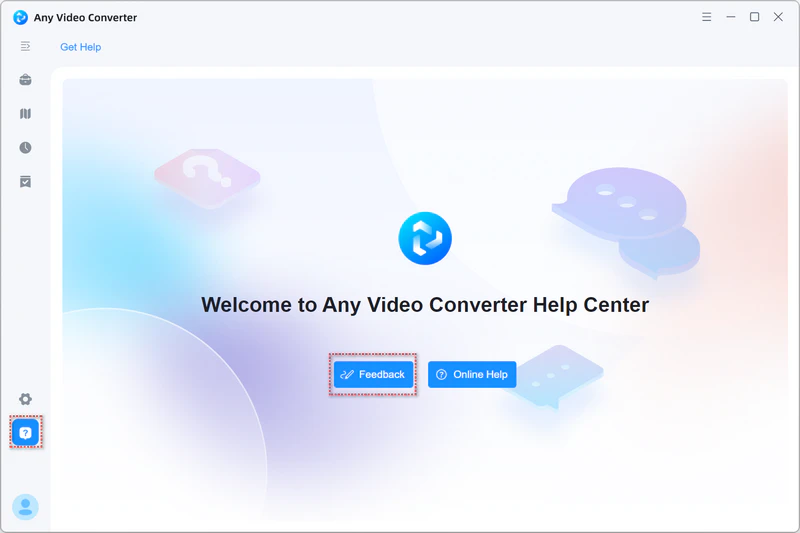
1. Open the Help Center: Click  icon, then select "Feedback" to open the feedback form.
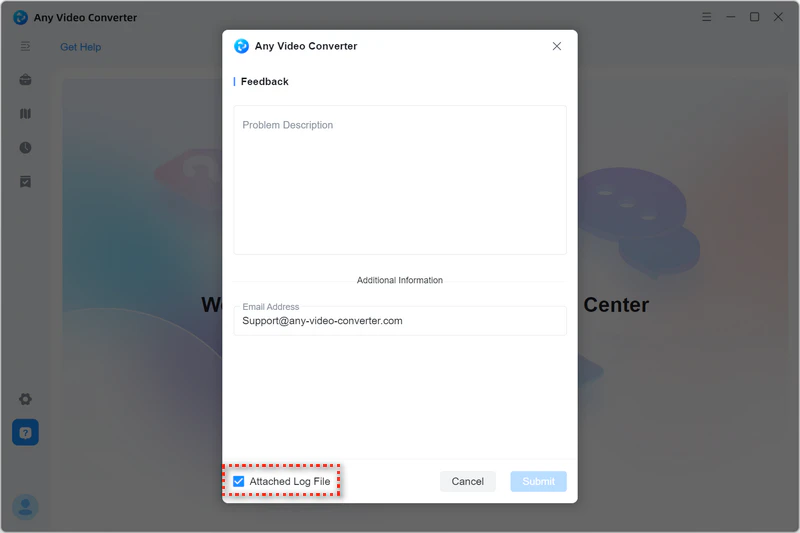
2. Describe the Issue: Provide a detailed description of the problem you're experiencing.
3. Provide Your Email: Enter the email address you use for communication. This ensures we can get back to you.
4. Attach the Log File: Make sure to check the box for "Attached Log File".
5. Submit. After filling out the form with the necessary information, click the "Submit" button to submit the bug report to our support team.
 Video Enhancer Tutorials