


How to Rip DVD with VLC and Convert DVD to MP4 for Free (2026 Guide)
Can I rip a DVD with VLC in 2026? Yes, VLC can still rip some DVDs and convert them to MP4. In my 2026 test, VLC was able to read a DVD, detect the disc titles, and export it as an MP4 file.
However, VLC works best with homemade or unprotected DVDs. If your DVD has complex title structures, multiple audio or subtitle tracks, or copy protection, VLC may select the wrong title, miss subtitles, have no audio, or convert only part of the movie. This guide shows you how to rip a DVD with VLC step by step, choose the right title, audio track, and subtitle track, and fix common VLC DVD ripping problems.
- • Part 1: Can VLC Rip DVDs? What You Should Know First
- • Part 2: How to Rip a DVD with VLC on Windows
- • Part 3: How to Rip a DVD with VLC on Mac
- • Part 4: My 2026 VLC DVD Ripping Test: Is It Still Practical?
- • Part 5: Common VLC DVD Ripping Problems and Fixes
- • Part 6: If VLC Still Doesn’t Work: Try a Simpler DVD Ripping Workflow
- • Part 7: FAQs About Ripping DVDs with VLC
Quick Answer: Can You Rip a DVD with VLC?
Yes. VLC can convert some DVDs to MP4 for free through its built-in Convert/Save feature. The basic workflow is to open the DVD in VLC, identify the correct main title, choose the audio and subtitle tracks, select an MP4 profile, and start the conversion. This method works best for basic DVD-to-MP4 conversion.
Video Tutorial: How to Rip and Convert DVD to MP4 for Free [2026 Tutorial]
The video above demonstrates the full VLC DVD ripping workflow. If you prefer written steps, follow the Windows and Mac instructions below.
VLC is a good free option for basic DVD-to-MP4 conversion. If you prefer a more guided DVD-ripping workflow, Any Video Converter can help you scan DVD titles, select audio and subtitle tracks, and convert DVDs to MP4 with fewer manual steps.

Part 1: Can VLC Rip DVDs? What You Should Know First
Yes, VLC can still rip some DVDs for free. However, VLC is primarily a media player, not a dedicated DVD ripper, so it works best with homemade or unprotected DVDs.
Unlike a dedicated DVD ripper, VLC requires you to manually confirm and choose the correct title, audio track, subtitle track, and output profile. In the following steps, I’ll show you the most practical way to rip a DVD with VLC on Windows 11 and macOS Tahoe 26, so you can avoid common problems such as incomplete conversion, missing audio, or missing subtitles.
Part 2: How to Rip a DVD with VLC on Windows
In this section, I’ll show you how to convert a DVD to MP4 with VLC on Windows 11 step by step.
Before getting started, insert your DVD into the built-in or external DVD drive and make sure the disc is readable and playable.
Step 1: Play the DVD with VLC Media Player
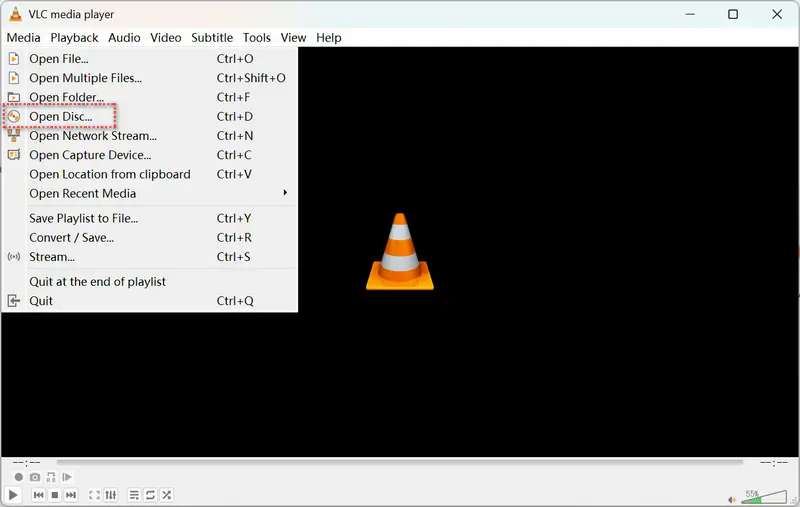
Run VLC on your Windows PC, then click Media → Open Disc.
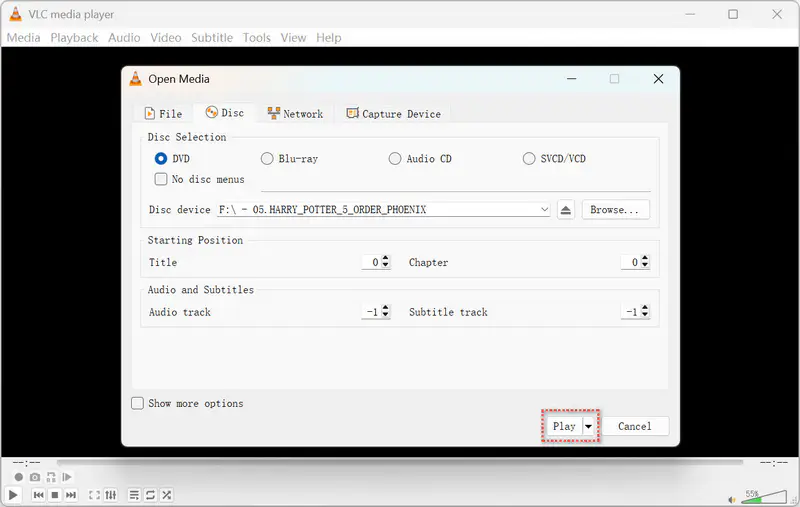
In the Open Media window, go to the Disc tab, select DVD, choose the correct disc device, and click Play to start playing the DVD.
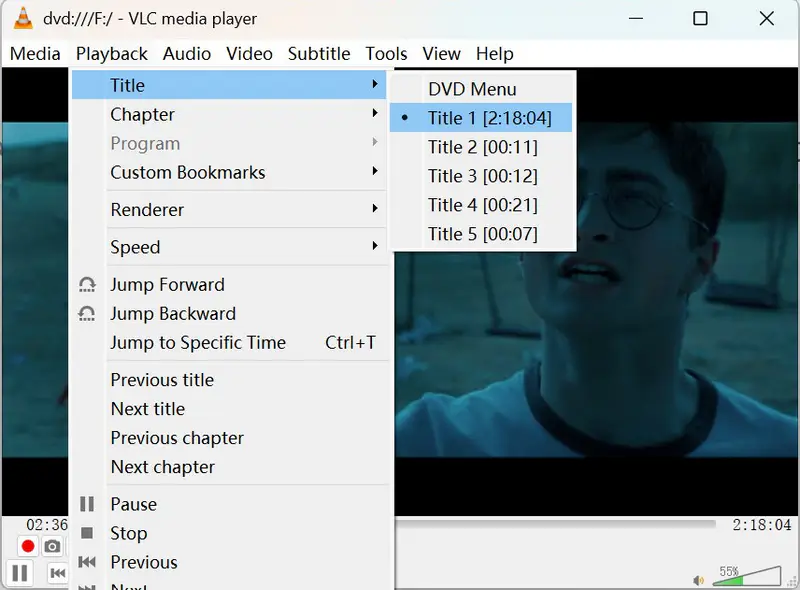
Once the DVD starts playing, click Playback → Title to check which title is currently selected. If you are playing the main movie, note this title number for later conversion. In many movie DVDs, the main title is usually the longest title, but it is not always Title 1.
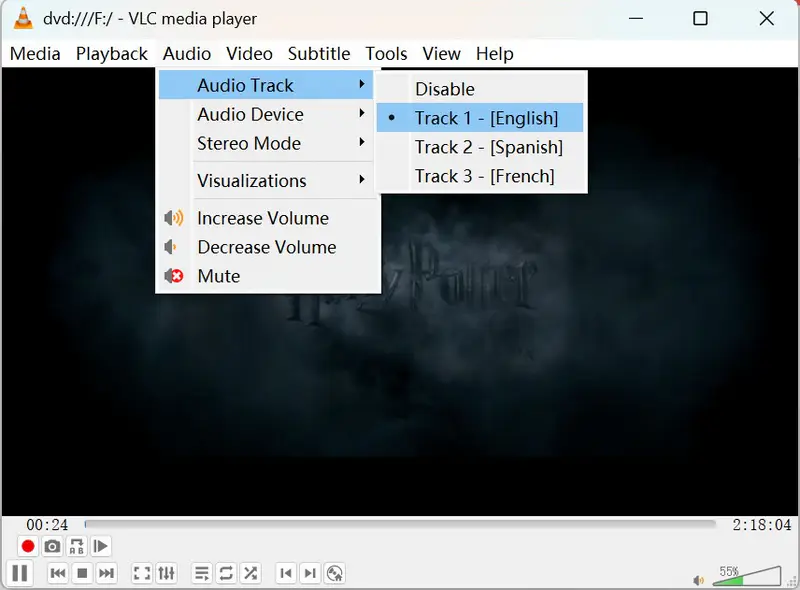
Next, click Audio → Audio Track to confirm the audio language you want to keep, and note the track number. For example, in this demo, the desired audio track is Track 3 - English.
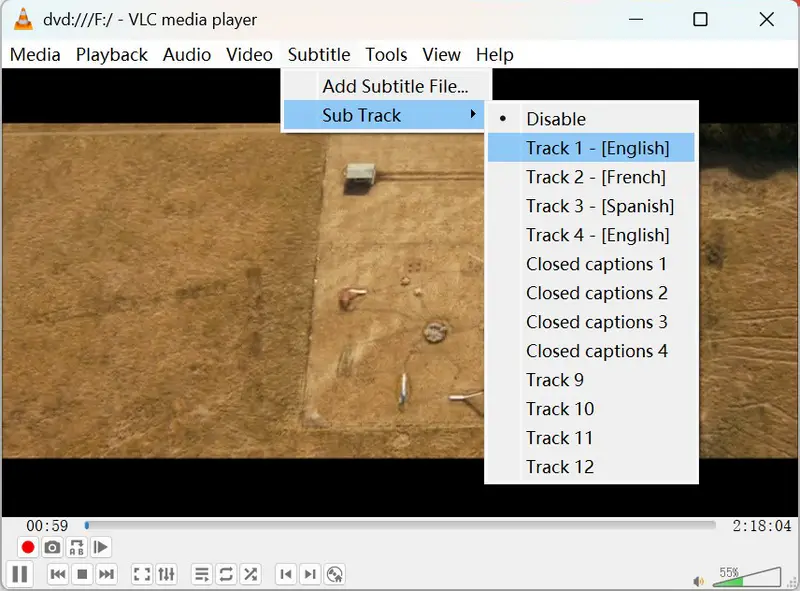
Then click Subtitle → Sub Track to confirm the subtitle you want to keep, and note the subtitle track number. For example, in this demo, the desired subtitle track is Track 1 - English.
Step 2: Choose the Title, Audio, and Subtitle Track in VLC
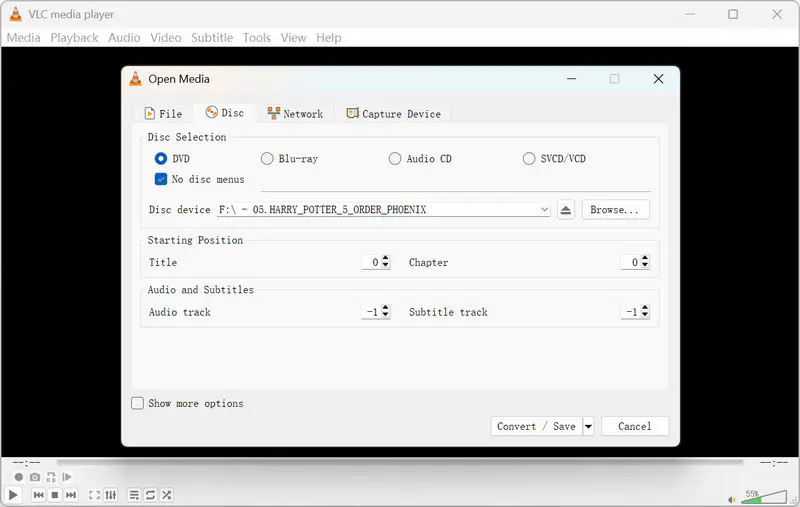
Now go back to Media and choose Convert/Save to open VLC’s built-in conversion tool. Open the Disc tab and select your DVD source.
Under Starting Position, enter the title number, audio track number, and subtitle track number you confirmed earlier. For Chapter, you can usually keep it at 0 to start from the beginning of the selected title. If VLC starts from the wrong point, try setting Chapter to 1.
Step 3: Customize the MP4 Output Profile
Click Convert/Save at the bottom to choose the output profile. If none of the presets fit your needs, click the profile icon to create a new one or customize an existing profile.
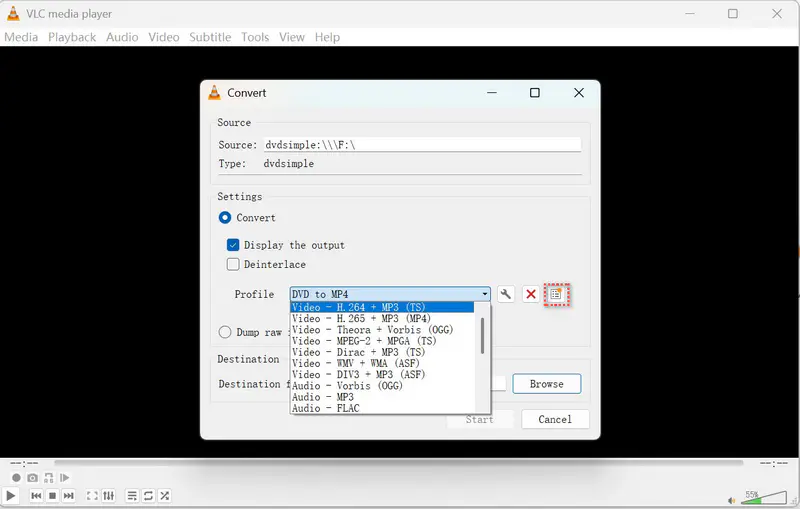
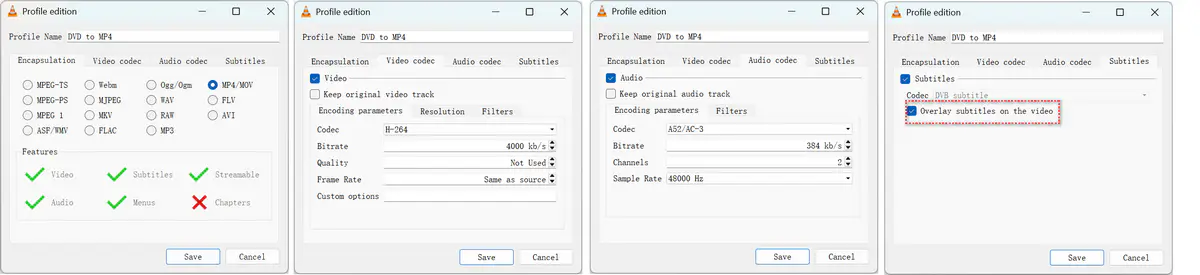
On the Profile edition page, set Encapsulation to MP4/MOV, choose H.264 as the video codec, and choose AAC or AC3 as the audio codec.
If you want subtitles to appear permanently on the video, choose DVB Subtitle and enable Overlay subtitles on the video. This will burn the subtitles into the video image, so they cannot be turned off later.
Step 4: Rip the DVD to H.264 MP4 with VLC
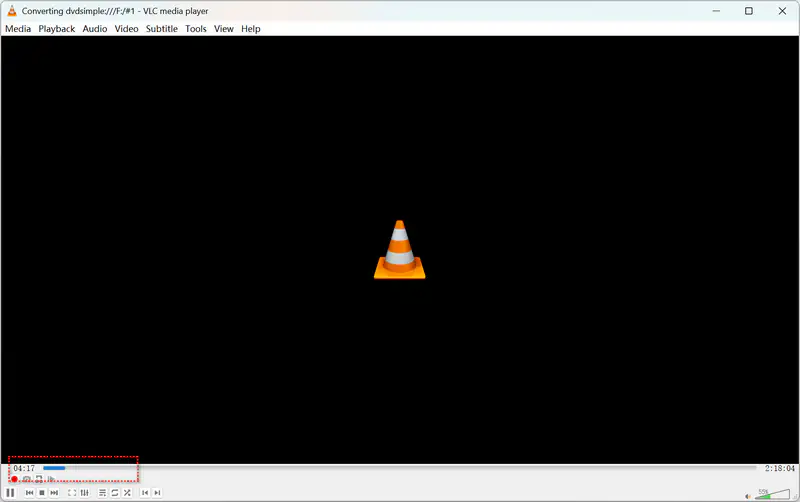
Click the Browse button to choose the destination folder and file name for the converted video. Then click Start to begin ripping the DVD to H.264 MP4 with VLC.
Part 3: How to Rip a DVD with VLC on Mac
The VLC DVD-to-MP4 workflow on Mac is similar to Windows, but Windows usually offers a more straightforward Convert/Save interface. On Mac, some menu names and conversion options may look slightly different, so the steps below focus on the key differences.
Step 1: Open and Preview the DVD on Mac
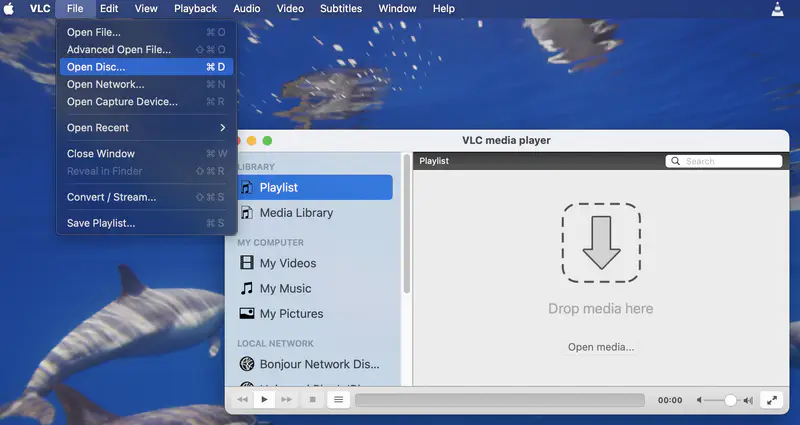
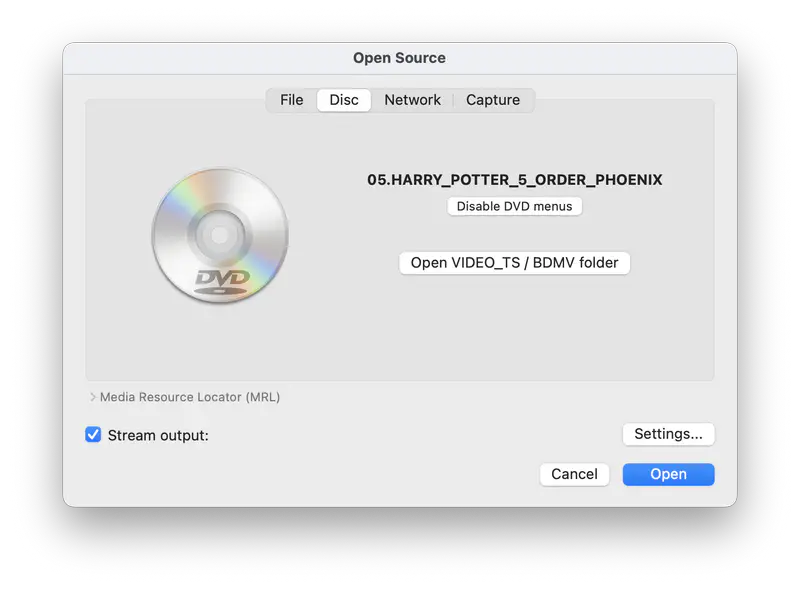
Insert the DVD into your Mac or an external DVD drive. Open VLC, then go to File → Open Disc. Select your DVD source and click Open or Play to make sure VLC can read the disc.
While the DVD is playing, use Playback → Title to check the main title. Then use Audio → Audio Track and Subtitle → Sub Track to confirm the audio and subtitle tracks you want to keep.
Step 2: Convert the DVD to MP4
Go to File → Convert / Stream. Add your DVD source, then choose or customize an MP4 profile. For most DVDs, use MP4 as the container, H.264 as the video codec, and AAC or AC3 as the audio codec.
If you want permanent subtitles, enable subtitle overlay when customizing the profile. If you prefer selectable or external subtitles, do not burn subtitles into the video.
Step 3: Save the Converted File
Choose Save as File, select the destination folder, and start the conversion. VLC will then convert the selected DVD content to an MP4 file.
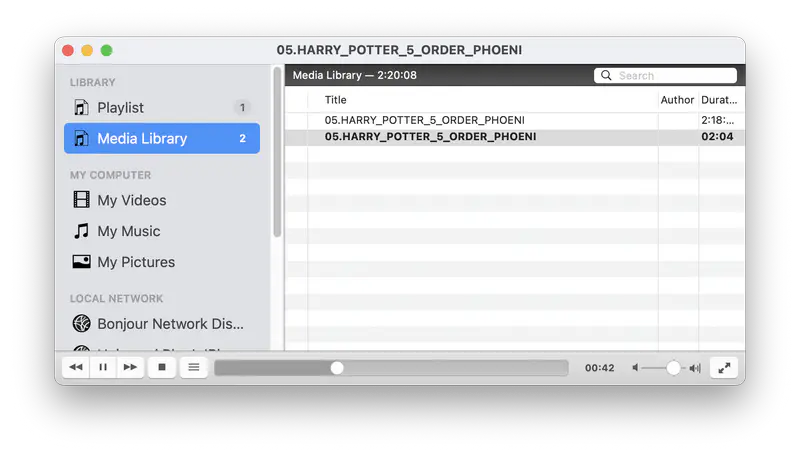
Part 4: My 2026 VLC DVD Ripping Test: Is It Still Practical?
In my 2026 test, VLC was able to convert a DVD to MP4, but the process required more manual setup than I expected. Before converting, I had to preview the DVD, confirm the main title, check the audio and subtitle tracks, and then enter the correct settings in VLC’s conversion window.
This is the biggest difference between VLC and a dedicated DVD ripper. VLC does not scan the DVD and display all available titles, audio tracks, and subtitles in a simple selection list. Instead, you need to identify these options manually before conversion. If the wrong title, chapter, audio track, or subtitle track is selected, VLC may convert only part of the DVD, miss the selected subtitles, or keep the wrong audio track.
That is why the next section focuses on the most common VLC DVD ripping problems and how to fix them.
Part 5: Common VLC DVD Ripping Problems and Fixes
Even if you follow the steps carefully, VLC may not always convert the DVD as expected. Use the table below to quickly check the most common VLC DVD ripping problems, why they happen, and what you can try first.
| Issues | Possible Causes | Quick Fix |
| Not ripping the DVD | Protected, damaged, region-locked, or unreadable disc | Check if VLC can play the DVD first and try another unprotected DVD |
| Only converts part of the DVD | Wrong title or chapter | Preview the DVD and select the correct main title |
| No audio after ripping | Wrong audio track or codec | Select the correct audio track and use AAC or AC3 |
| Subtitles are missing | Subtitle track not selected or overlay disabled | Select the subtitle track and enable overlay for burned-in subtitles |
| Output quality is poor | Video bitrate is too low | Increase the bitrate to 3,000–5,000 kbps |
| Audio is out of sync | Unstable transcoding | Try another profile or a dedicated DVD ripper |
Part 6: If VLC Still Doesn’t Work: Try a Simpler DVD Ripping Workflow
If the quick fixes above do not solve your VLC DVD conversion issues, it may be easier to use a dedicated DVD ripper or converter. A guided DVD ripping workflow can help you scan the disc, choose what to keep, and convert the DVD to MP4 or other formats with fewer manual steps.
6.1 Any Video Converter - A More Guided DVD Ripping Workflow
VLC can work for basic DVD-to-MP4 conversion, but it still depends on manual setup. You need to preview the DVD first, identify the correct title, choose the audio and subtitle tracks, and then configure the output profile yourself.
If you want a more guided workflow, Any Video Converter can be a practical alternative. It scans the DVD first, displays available titles, audio tracks, and subtitles, and lets you choose what to keep before conversion. This reduces the need to guess title numbers or adjust VLC settings repeatedly.
For beginners, the recommended output settings can be used directly. Advanced users can still customize the format, codec, and quality settings when needed. After ripping, you can also use the AI Video Enhancer tool to improve the converted video quality.
Video Tutorial: A Simpler Way to Rip DVD to MP4
To rip a DVD with Any Video Converter, simply add the DVD and start scanning. Then choose the main title and tracks you want to keep, select MP4 or another output format, and click Convert Now. After ripping, you can also use AI Video Enhancer to improve the converted video quality.
DVD Ripping: Rip DVDs to MP4, MKV, MOV, AVI, and other formats with a guided workflow.
Skip Clips: Skip unnecessary clips such as menus, intros, and trailers.
Track Selection: Choose the main title, audio track, and subtitle track before conversion.
Video Conversion: Convert videos and audio files to 1,000+ formats for different devices and platforms.
Video Editing: Trim, merge, crop, adjust, add subtitles, music, or watermarks.
Video Enhancement: Improve ripped DVD videos with an AI-powered enhancement tool.
6.2 HandBrake - An Open-Source Option for Advanced Encoding
If you prefer an open-source tool and want more control over compression and output size, HandBrake is also worth considering. It is a good option for users who are comfortable spending more time adjusting encoding settings and testing different presets.
However, HandBrake may feel more technical for beginners, and like VLC, it works best with unprotected DVDs. If you want a full walkthrough, read our step-by-step guide: How to Rip DVD with HandBrake.
In that guide, you’ll learn how to load a DVD source in HandBrake, choose the right title, select MP4 or MKV, adjust quality settings, and export the DVD as a digital video file.
6.3 VLC vs Any Video Converter vs HandBrake: Which Should You Choose?
| Free DVD Ripper | Best For | Key Advantage | Note |
| VLC Media Player | Basic free DVD conversion | Works for simple, unprotected DVDs | Confirm title, audio, and subtitle before setup |
| Any Video Converter | Easier DVD ripping workflow | Guided selection of titles, audio, and subtitles | Best for guided ripping rather than deep encoding tweaks |
| HandBrake | Advanced encoding | Open-source tool for compression control | More technical for beginners |
If you only need to convert a simple, unprotected DVD once, VLC may be enough. If VLC keeps choosing the wrong title or missing audio and subtitles, Any Video Converter offers a more guided workflow. If you prefer an open-source tool and want to spend more time controlling compression and output size, HandBrake is a good option to explore.
Part 7: FAQs About Ripping DVDs with VLC
Why is VLC not ripping my DVD?
If your disc is copy-protected, damaged, region-locked, or not readable by your DVD drive, VLC may fail to rip it. Since VLC is primarily a media player rather than a dedicated DVD ripper, it works best with homemade or unprotected DVDs.
First, check whether the disc is playable in VLC. If VLC cannot read or play the disc, it may not be able to convert it either. You can also check the DVD drive, clean the disc, confirm the correct DVD region, and try another unprotected DVD to see whether the issue comes from the disc or VLC.
If VLC can play the DVD but still fails to convert it correctly, a dedicated DVD ripping workflow such as Any Video Converter may help you scan the DVD titles, audio tracks, and subtitles before conversion.
Can VLC rip copy-protected DVDs?
VLC is not designed as a dedicated DVD decryption or ripping tool, so it may not reliably rip copy-protected DVDs. It works best with homemade or unprotected DVDs. If a DVD has copy protection, region restrictions, or a complex title structure, VLC may fail to read the disc, select the wrong title, or convert only part of the movie.
Why does VLC only rip part of my DVD?
This usually happens when the wrong title or chapter is selected. Play the DVD first, check Playback → Title to confirm the main title, and then choose the same title in the Convert/Save window. If the disc is copy-protected, region-restricted, damaged, or not fully readable, VLC may also stop early or create an incomplete file.
If rechecking the title and chapter does not solve the issue, using a tool that scans DVD titles first can reduce trial and error. Any Video Converter, for example, lets you choose what to keep before conversion.
How do I keep subtitles when ripping DVD with VLC?
Play the DVD first and go to Subtitle → Sub Track to confirm the subtitle track you want. Then select the same subtitle track in the Convert/Save window. If you want permanent subtitles, choose DVB subtitle in the Profile edition page and enable 'Overlay subtitles on the video'. If you want selectable subtitles, do not enable overlay.
How do I choose the right DVD title in VLC?
Play the DVD first, start the main movie, and go to Playback > Title to note the current title number. Then select the same title in the Convert/Save window. The main title is often the longest one, but it is not always Title 1, so previewing the DVD first is the safest method.
What are the best output settings for ripping DVDs with VLC?
For most DVDs, use MP4 with H.264 video and AAC audio for the best compatibility. Keep the frame rate the same as the source and set the video bitrate around 3,000–5,000 kbps. If you want to keep AC3 audio, use 384 kbps with a 48 kHz sample rate. MKV is also a good choice if you need better support for multiple audio or subtitle tracks.
Is VLC the best free DVD ripper?
VLC is a good free option for basic DVD-to-MP4 conversion, especially for homemade or unprotected DVDs. But it is not the easiest workflow because you need to choose the title, audio track, subtitle track, and output profile manually.
For a more guided workflow, Any Video Converter is easier to follow. For open-source encoding control, HandBrake is also worth considering.
Does VLC reduce DVD video quality?
It depends on the output codec, bitrate, frame rate, and resolution you choose. Since DVD conversion usually involves re-encoding, some quality loss can happen, but proper settings can help minimize it.
For most DVDs, use MP4 with H.264 video, keep the original frame rate and resolution, and set the video bitrate around 3,000–5,000 kbps. Use AAC or AC3 audio with a 48 kHz sample rate.
If the converted video still looks soft or blurry, you can also use Any Video Converter’s AI Video Enhancer after ripping to improve the video quality.
What is a better alternative to VLC for ripping DVDs?
A better alternative depends on what you need. If you want a more guided DVD ripping workflow, Any Video Converter is a free and practical VLC alternative. It helps you scan the DVD, choose what to keep, select audio and subtitle tracks, and convert the DVD to MP4 or other formats with fewer manual steps.
If you prefer an open-source tool and want more control over compression and output size, HandBrake is also worth considering. If you want to copy a DVD to MKV with minimal quality loss, MakeMKV is usually the better fit.
Conclusion
VLC can still be a useful free option for ripping some DVDs to MP4, especially if you are working with a simple, homemade, or unprotected DVD. In my 2026 test, VLC was able to complete the DVD-to-MP4 conversion, but the workflow required careful manual setup and repeated attempts.
If you only need a basic free method and do not mind adjusting these settings manually, VLC is worth trying. However, if VLC feels too manual, converts only part of the DVD, misses subtitles, or keeps the wrong audio track, a more guided DVD ripping workflow may save you time.
For an easier way to rip DVDs to MP4, try Any Video Converter. It helps you choose what to keep before conversion and provides a clearer workflow for DVD ripping, format conversion, and video enhancement.


Charlie Campbell | Content Writer
Charlie Campbell is an experienced technical documentation writer with a background in software development and a passion for emerging AI technologies. Dedicated to helping readers stay ahead in the fast-paced digital landscape, he combines technical expertise with clear communication to simplify complex topics and keep audiences informed on the latest advancements.